I write a lot here about why you should adopt AI before it adopts your job. Fair question in response: adopt it HOW, exactly? This is the practical answer. Claude Cowork is the closest thing right now to hiring a digital coworker, and this tutorial shows you how to actually be productive with it… not just poke at it for ten minutes and go back to old habits.
What Is Claude Cowork?
Cowork is a mode inside the Claude Desktop app (announced by Anthropic in January 2026, currently a research preview for paid plans). Regular chat answers your prompts one at a time. Cowork is different: it uses the same agentic architecture as Claude Code, the tool developers use, but without a terminal. You describe an outcome, Claude makes a plan, breaks it into subtasks, runs code in an isolated virtual machine on your computer, and delivers finished files to a folder you chose.
The difference in one sentence: chat gives you answers, Cowork gives you deliverables. Formatted Excel files with working formulas. Organized folders. Slide decks. Research reports. While you do something else.
Setup (5 Minutes)
- Get the desktop app. Cowork lives in Claude Desktop for macOS and Windows, not the website. Download at claude.com/download. On Windows, make sure you are on the latest version.
- You need a paid plan. Pro, Max, Team, or Enterprise.
- Switch modes. Open the app and look for the mode selector with Chat and Cowork. Click Cowork.
- Connect a folder. When you start a task, give Claude access to one specific folder. Start with a low-stakes one, like Downloads or a test folder. It can only touch what you connect.
Full official guide: Get started with Claude Cowork.
The Mindset Shift That Unlocks Everything
Most people fail at agentic AI for one reason: they micromanage it like a search bar. The skill is describing outcomes, not steps.
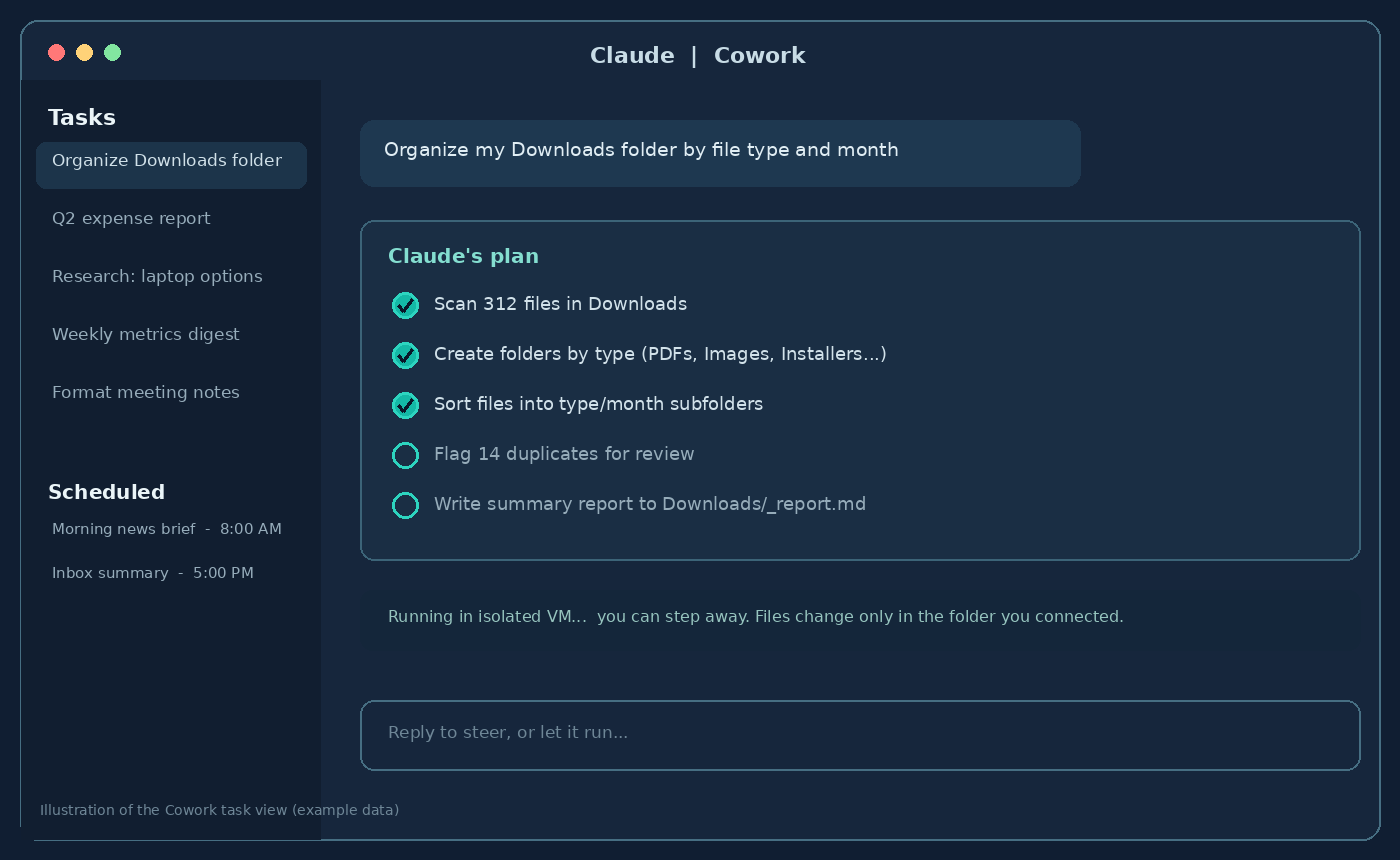
Weak: “list the files in my downloads folder.” Strong: “Organize my Downloads folder into subfolders by file type and month, flag duplicates instead of deleting them, and leave me a summary report.”
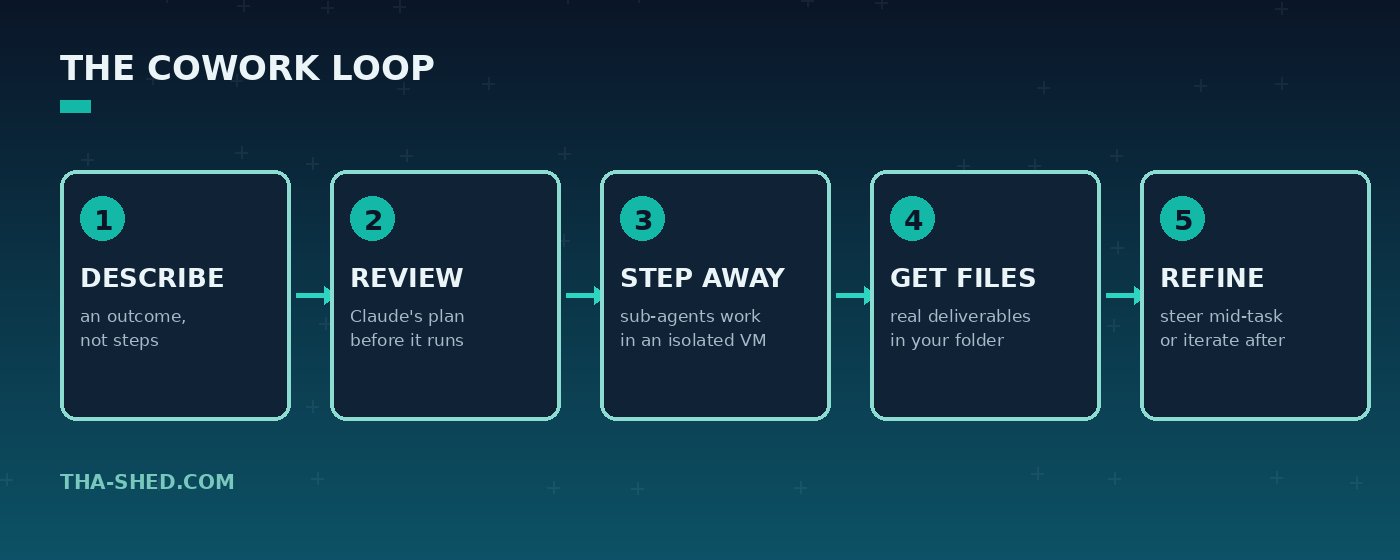
Then review the plan it shows you, let it run, and come back to finished work. You can jump in mid-task to steer. That is the whole loop.
Seven Workflows Worth Stealing
1. The folder you have been avoiding
“Organize this folder by type and date, flag duplicates for review.” Hundreds of files sorted while you get coffee. This is the perfect first task because you can see exactly what it did.
2. Receipts into expense reports
Drop receipts into a folder and ask for a formatted expense report. Claude reads the PDFs and images, extracts amounts and dates, and builds the spreadsheet.
3. Real spreadsheets and decks, not CSV junk
Cowork produces Excel files with working formulas, conditional formatting, and multiple tabs, plus PowerPoint decks from rough notes. Ask for the structure you actually want: “a budget tracker with a summary tab that pulls from the monthly tabs.”
4. Research synthesis
“Research X, compare the top five options, and give me a report with sources.” Claude runs web searches, reads pages, and writes the synthesis to a file. The output is a document you can forward, not a chat bubble that dies when you close the window.
5. Scheduled tasks: the compounding one
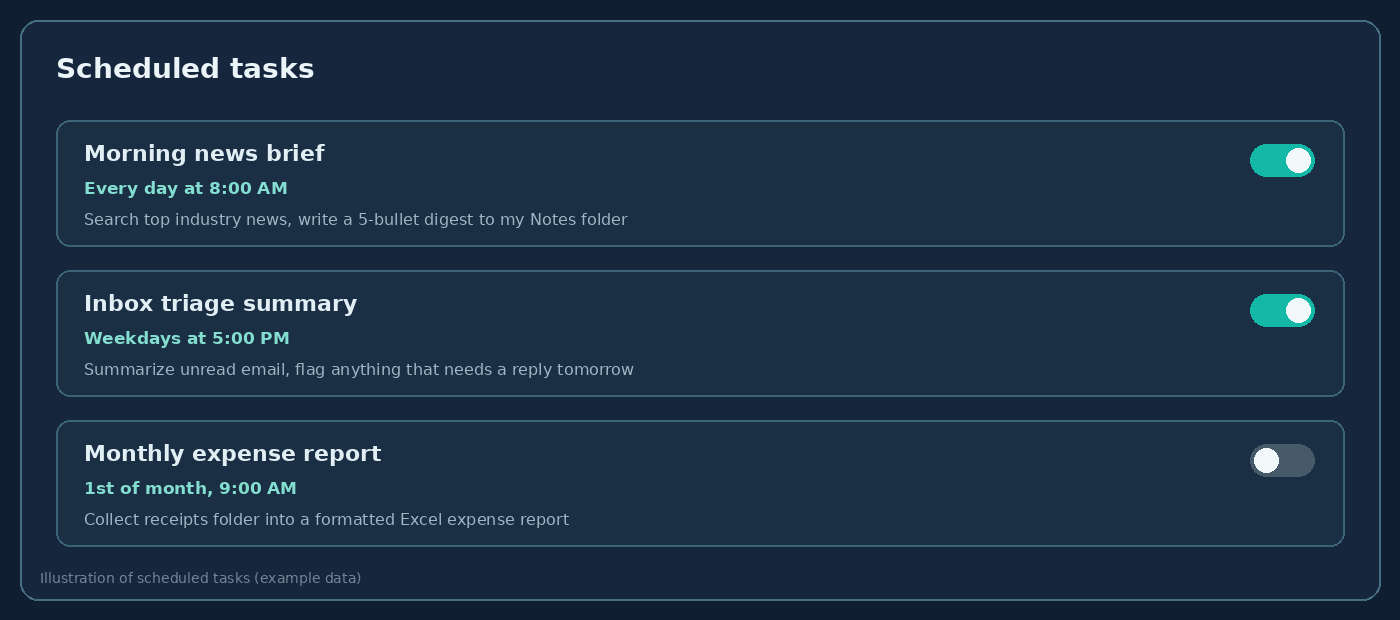
This is the feature that separates tourists from residents. Type /schedule in any Cowork task and turn it into a recurring job: a morning news digest, a weekly metrics summary, a monthly report. Claude runs it automatically while the app is open. One good scheduled task saves you 15 minutes every single day. That is an hour and a quarter a week you did not work for.
6. Projects for recurring work
Group related tasks into a project with its own files, instructions, and memory. Your “monthly close” or “content pipeline” project remembers context between sessions, so you stop re-explaining yourself.
7. Assign tasks from your phone
Pro and Max users can message Claude from the mobile app while the desktop sits at home doing the work with your local files. Send “draft the weekly report from the notes folder” from the train; collect the file when you sit down.
Power-Ups Most People Never Turn On
- Global instructions (Settings, then Cowork): standing orders for every session. Your tone, your formats, your role. Mine would be: no em dashes, ever.
- Folder instructions: project-specific context that lives with a folder, so any session in that folder starts informed.
- Plugins: bundles of skills and connectors for specific roles, like finance, engineering, or product. Browse them before building habits manually.
The Safety Part (Read This One)
An agent that can act on your computer deserves more caution than a chatbot. Cowork ships with real guardrails, and you should use all of them:
- Ask before acting vs. act without asking. Two permission modes. Start with “ask before acting” until you trust a workflow. Claude pauses for your approval on each significant action.
- VM isolation. Code and shell commands run in an isolated virtual machine, not loose on your operating system, and file changes are limited to folders you connected.
- Deletion protection. Claude must get your explicit permission before permanently deleting any file, in either mode.
- Never paste passwords into the chat. Claude will refuse to type credentials for you by design; you log in yourself and let it work in the authenticated session. The chat transcript is not a password manager.
- Connect the minimum. Give access to the folder a task needs, not your whole drive.
Managing Usage Limits
Cowork burns more usage than chat because agentic tasks are compute-heavy. Three habits help: batch related work into one session, keep simple questions in regular chat, and reserve Cowork for jobs that produce files or need many steps. Check Settings, then Usage, if you are hitting walls.
FAQ
Is Claude Cowork free?
No. It requires a paid Claude plan (Pro, Max, Team, or Enterprise) and the desktop app for macOS or Windows. It is currently a research preview.
Can Claude Cowork delete my files?
Not without you. Cowork requires explicit permission before permanently deleting anything, and it can only access folders you deliberately connect.
What is the difference between Claude Cowork and Claude Code?
Same agentic engine, different audience. Claude Code is a terminal tool aimed at developers. Cowork puts those capabilities in the desktop app for everyday knowledge work: documents, spreadsheets, research, and file management.
Start With One Task
Do not try to automate your life on day one. Pick the single most annoying recurring chore you have, hand it to Cowork tonight, and schedule it if it recurs. Momentum does the rest. If you want to go deeper on working alongside AI instead of against it, read AI Won’t Kill Your Career. Your Ego Will. and check out our DevOps and AI courses.
Full disclosure for the skeptics: this tutorial, including every illustration in it, was researched, written, and published by Claude running in Cowork. The tool wrote its own manual. That is the level of delegation we are talking about.