GitHub Copilot stopped being “autocomplete for code” a while back. In 2026 it is a full stack: inline completions in your editor, a chat pane that reads your repo, an agent mode that edits multiple files and runs commands on its own, a cloud coding agent that works GitHub issues without you watching, and a standalone CLI that lives in your terminal next to kubectl and terraform. If you are doing DevOps, security, or platform work and you are still only using the autocomplete, you are leaving most of the tool on the table.
This is a working guide, not a feature tour. Setup, the mindset that keeps you from getting burned, seven workflows worth stealing, the gotchas that actually bite people, and what it costs to run this daily.
See the workflow in action, tap through the tabs below:
npm install -g @github/copilot

cd your-project
copilot
> /login
gh issue create \
  --title "Fix flaky test: test_deploy_rollback.py" \
  --body "pytest -k rollback fails about 1 in 5 runs. Investigate and fix." \
  --assignee "@copilot"
copilot
> /model claude-sonnet-4.6
> Investigate and fix the flaky rollback test in
  tests/test_deploy_rollback.py. Run pytest -k rollback
  until it passes 3 times in a row, then open a PR.
Autopilot pushes commits on its own. Never point Autopilot or the cloud coding agent at a repo where an unreviewed action could hit production. Set a per-session AI credit limit so a runaway loop cannot burn your monthly allowance.
Copilot code review is a Comment only. It never counts toward required approvals and will not block a merge, so it is not a substitute for human sign off on security sensitive changes.
The review model is not disclosed. Do not assume two reviews used the same model or judgment. Treat every review as a first pass, not a final answer.
What GitHub Copilot Actually Is Right Now
Copilot today is five things wearing one name. Code completions and Next Edit Suggestions in your editor, still free and unmetered on every paid plan. Copilot Chat, the conversational assistant in VS Code, JetBrains, or on github.com. Agent mode, where Copilot picks the files to touch, proposes and runs terminal commands, reads the output, and iterates until the task is done. The coding agent, the async cloud version: assign it a GitHub issue and it works inside a sandboxed GitHub Actions environment, pushes commits to a draft PR, and asks for your review when it is done. And Copilot CLI, a separate terminal install with Plan and Autopilot modes, parallel sub agents for exploring, coding, and reviewing, and memory of your repo that persists across sessions.
For DevOps and security work specifically, the CLI and the coding agent matter more than editor completions. That is where you point Copilot at a flaky pipeline, a Terraform module, or a pull request full of infrastructure changes and let it grind through the tedious part while you do something else.
Quick Setup
You need two things: the editor extension for day to day coding, and the CLI for anything terminal shaped. Copilot ships as an extension for VS Code and JetBrains IDEs, install it from the marketplace and sign in with your GitHub account. For the CLI, Node.js 22 or later is the only prerequisite. Install with npm on any platform:
npm install -g @github/copilotHomebrew works on macOS and Linux (brew install --cask copilot-cli), WinGet works on Windows (winget install GitHub.Copilot), and there is a one line install script too. Once it is installed, cd into a project and run copilot. The first time, type /login and follow the prompt to authenticate. After that it remembers you.
If Copilot comes from your employer's organization, ask an admin to confirm the Copilot CLI policy is enabled. Without it the CLI will authenticate but refuse to run.
The Mindset: Fast Junior Engineer, Not an Oracle
Treat Copilot like a capable junior engineer who works at ten times your typing speed and has read your whole repo, but has zero accountability for what ships. It will confidently propose a fix that passes the tests you gave it and quietly breaks an assumption you did not write down. Agent mode and Autopilot mode make this worse, not better, because they chain steps without waiting for you. The fix is not to slow Copilot down. It is to keep the loop tight: small, well scoped tasks, real test commands it can run and check, and a human reading every diff before it merges anything that touches production.
7 Workflows Worth Stealing
1. Assign issues to the coding agent and come back to a PR
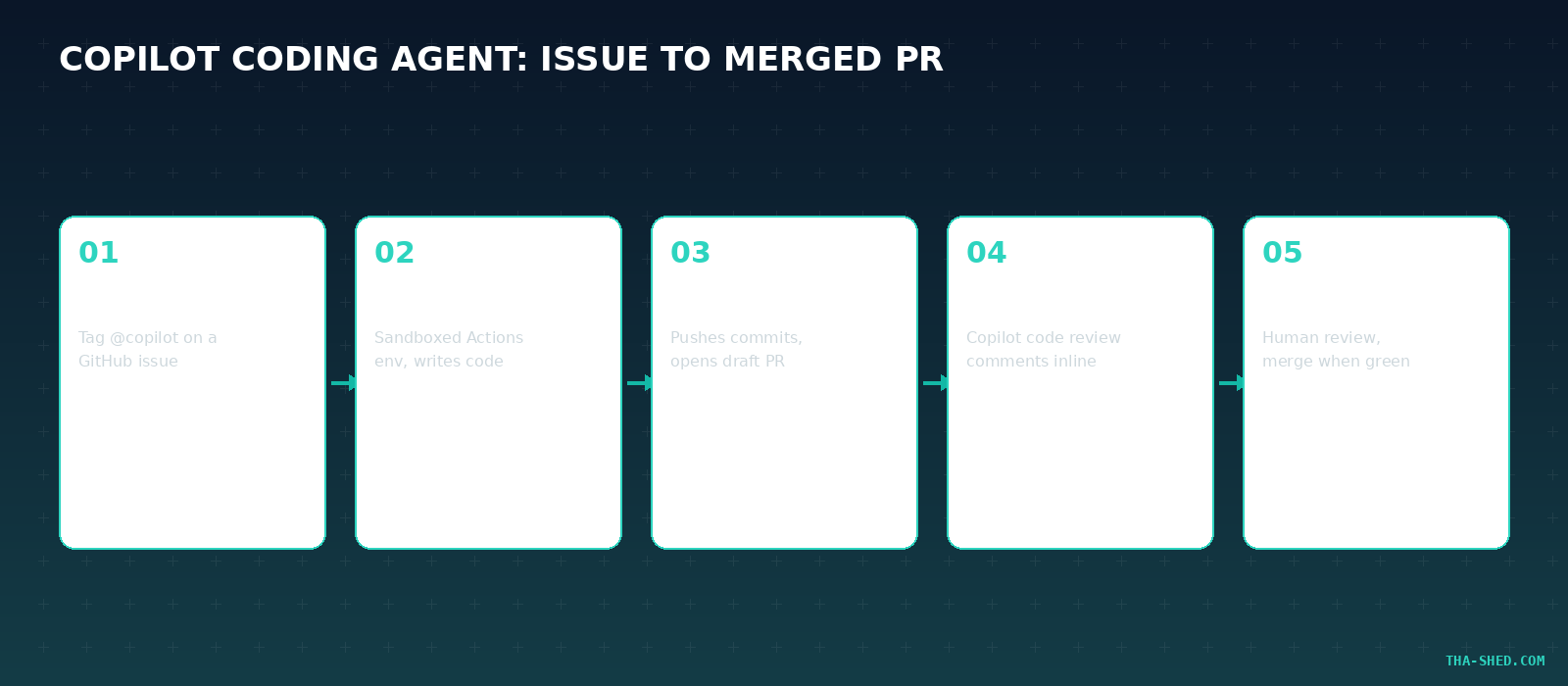
The cloud coding agent is built for exactly the kind of ticket that piles up in a DevOps backlog: fix this flaky test, bump this dependency, patch this lint failure. File the issue with clear acceptance criteria, assign it to @copilot, and it spins up in a sandboxed Actions environment, writes the code, runs your test suite, and opens a draft PR. You review it like any other PR. Copilot code review can also comment on it automatically before a human ever looks.
2. Let CLI Autopilot grind through repetitive fixes
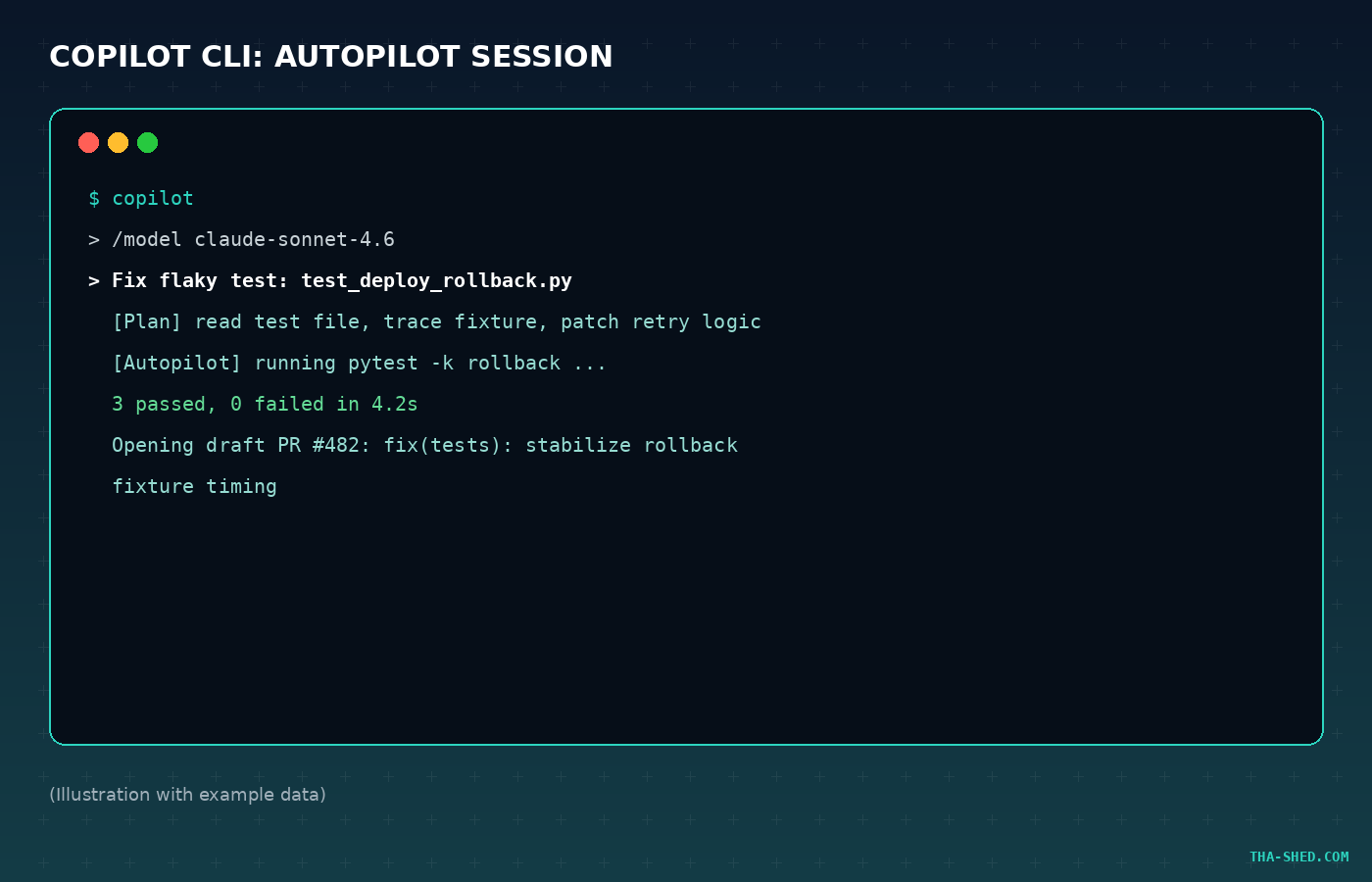
Autopilot mode in Copilot CLI works through a task end to end without waiting for your input after each step. It is the right tool for "investigate this flaky test and fix it" or "find every place we log a raw API key and redact it." Give it a real success condition (a test command it can rerun) and let it iterate. Shift+Tab cycles between Standard, Plan, and Autopilot mid session, so you can watch it plan first if the task is risky.
(Illustration with example data)
3. Request automatic code review on every infrastructure PR
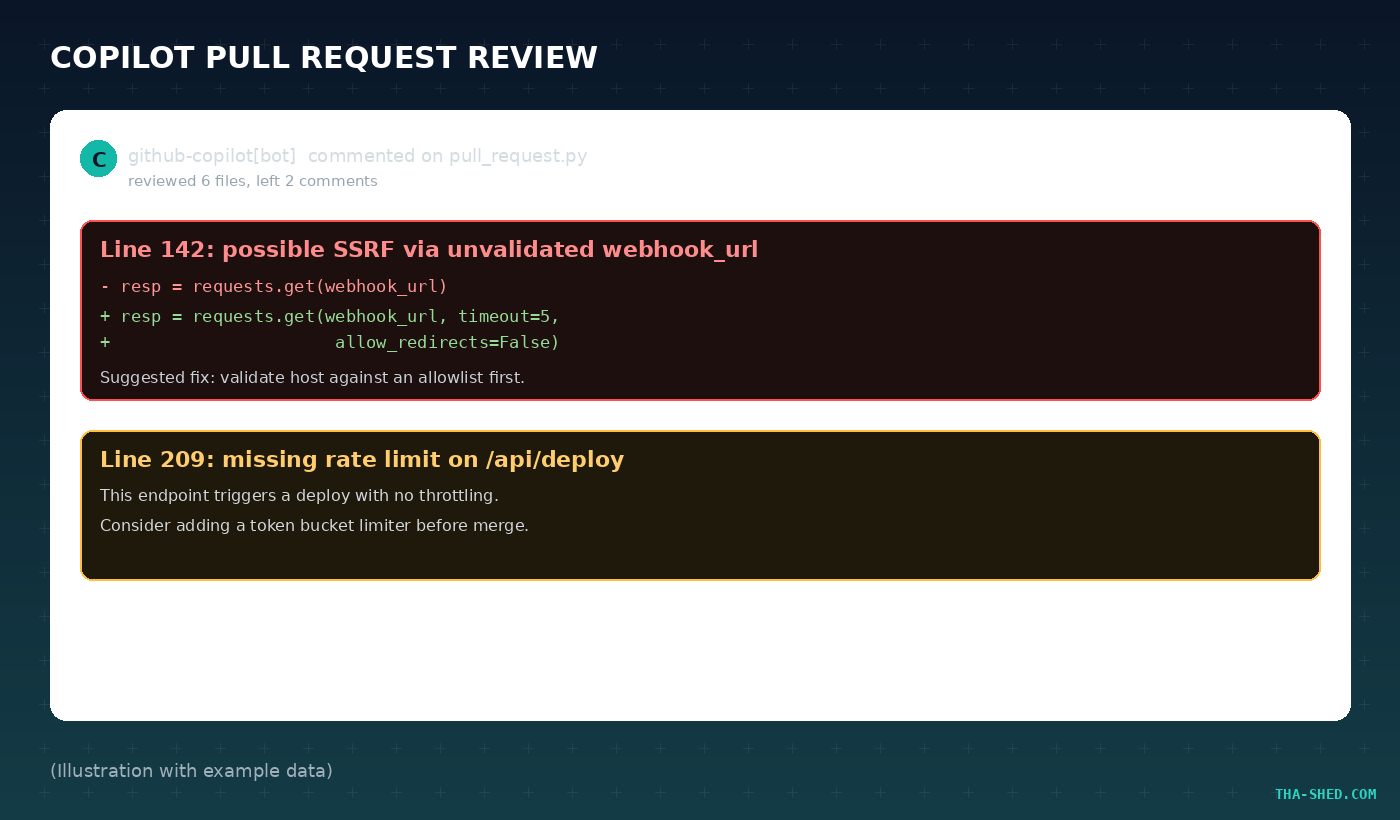
On github.com, open a pull request, and under Reviewers click Request next to Copilot. It usually finishes in under 30 seconds and leaves a Comment review, never an Approve, so it never blocks a merge on its own. For DevOps and security teams this is a free second set of eyes on Terraform diffs, IAM policy changes, and Dockerfiles before a human reviewer even opens the tab. You can also configure it to review automatically on every PR that touches specific paths.
(Illustration with example data)
4. Draft and explain infrastructure as code
Point Copilot Chat at a Terraform module or an Ansible playbook and ask it to explain what a change will actually do before you apply it, or to draft a new module against a pattern your team already uses. It is faster at translating "add a read replica with automated failover" into a first draft than most of us are at typing it from scratch, and it is much better used as a first draft generator than as a final reviewer.
5. Triage Dependabot and CVE alerts fast
Paste a CVE ID or a Dependabot alert into Copilot Chat and ask what it actually means for your codebase: is the vulnerable code path reachable, what is the minimum version bump, does the fix change any public API. This turns a 40 minute security triage into a 5 minute read, though you should still verify the reachability claim yourself on anything that touches auth or payment code.
6. Multi file refactors in agent mode, inside the editor
Agent mode in VS Code or JetBrains reads across files, proposes cross file edits, runs your build or test command, and fixes what breaks without you prompting for each step. It is the right mode for renaming a config key everywhere it is used, migrating a logging library, or updating a shared CI script and every workflow file that references it.
7. Standardize behavior with AGENTS.md
Drop an AGENTS.md file in your repo root describing house rules: which commands are safe to run unattended, which directories are off limits, how you want commit messages formatted, what "done" means for a task. Every Copilot surface, chat, agent mode, the CLI, and the cloud coding agent, reads it. This is the single highest leverage thing a platform team can do to make Copilot's output consistent across a whole org instead of "it depends who typed the prompt."
Safety and Gotchas
Autopilot and the cloud coding agent will run commands and push commits without a human in the loop step by step, so never point them at a repo or a task where an unreviewed action could hit production. Set an AI credit limit per session if your org supports it, so a runaway loop cannot burn your whole month's allowance on one bad prompt. Code review from Copilot is a Comment review only. It does not count toward required approvals and will not block a merge, so do not treat "Copilot approved it" as a substitute for a human sign off on anything security sensitive. And because Copilot's code review model is not disclosed for a given review, do not assume it used the same model, or the same judgment, twice in a row.
Usage and Cost Tips
As of mid 2026, GitHub Copilot runs on usage based billing. Code completions and Next Edit Suggestions stay unmetered and free on every paid plan. Everything agentic, chat, agent mode, code review, and the CLI, draws from a monthly pool of AI credits, priced at $0.01 per credit. Copilot Pro ($10 a month) includes $15 in credits, Pro+ ($39 a month) includes $70, and the Business plan ($19 per user) pools 1,900 credits per seat at the org level. The model you pick changes the burn rate a lot: a lightweight model like GPT-5 mini runs a fraction of a cent per typical request, while a top tier reasoning model can eat credits ten times faster. For routine DevOps grunt work, default to a cheaper Versatile tier model and reserve the expensive Powerful tier models for the refactors and security reviews that actually need the extra reasoning.
FAQ
Is GitHub Copilot CLI free to use?
The CLI itself is free to install and available on every Copilot plan including Free, but interactive sessions, agent mode, and Autopilot draw from your plan's AI credit allowance, so heavy CLI use on the free tier runs out fast.
What is the difference between agent mode and the coding agent?
Agent mode runs synchronously inside your editor or the CLI while you watch. The coding agent is asynchronous: you assign it a GitHub issue and it works in the background inside a sandboxed GitHub Actions runner, then opens a draft PR when it is done.
Which model should I use for security sensitive code?
Pick a Powerful tier model (Claude Opus or a GPT-5 reasoning variant) for anything touching auth, payments, or infrastructure permissions, and always have a human review the diff. Reasoning quality matters more than speed once real risk is on the line.
Where to Go From Here
Copilot's CLI and coding agent close a lot of the gap that used to send people to Cursor's agent mode for terminal heavy work, and either one is worth running for a week before you decide. If you want a structured way to build these habits into your actual job instead of a weekend experiment, our courses walk through agentic tooling for DevOps and security teams step by step. Install the CLI today, write one AGENTS.md file, and assign your ugliest flaky test ticket to @copilot before you log off.