If you live in a terminal and a code editor all day, the question is not whether to use an AI coding tool. It is which one earns a permanent spot in your workflow. Cursor has become the default answer for a lot of DevOps and security engineers, and for good reason. It is a real editor, built on VS Code, with an AI agent wired into every corner of it. This is a practical, opinionated Cursor tutorial: what it is, how to set it up, the one mindset shift that makes it click, and seven workflows you can use this week.
What Cursor actually is
Cursor is an AI-first code editor. It forks VS Code, so your extensions, keybindings, and themes carry over, then it bolts on an agent that can read your whole repo, edit many files at once, run terminal commands, and check its own work. The headline pieces you will touch daily are Tab (predictive autocomplete that guesses your next edit, not just the next token), Agent mode (an autonomous worker that plans and executes multi-file changes), Plan mode (it drafts a plan before touching code), and Composer, Cursor’s own in-house model tuned for fast multi-file edits.
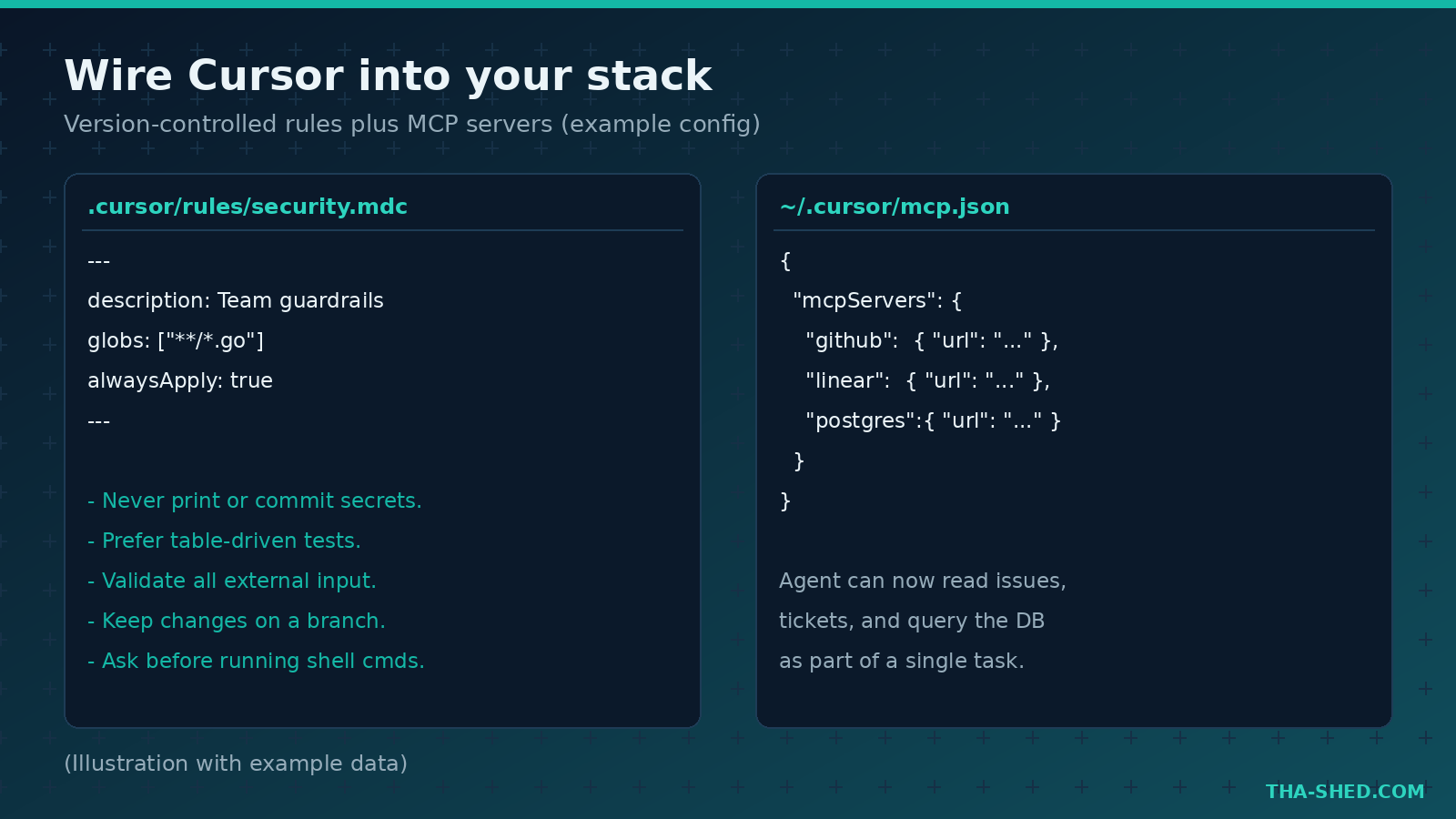
Two more features matter for serious teams. The .cursor/rules/ system lets you version-control how the AI behaves in your repo, and Model Context Protocol (MCP) lets the agent reach into GitHub, Linear, Slack, databases, and hundreds of other tools. More on both below.
Quick setup
Download the editor from the official site, install it, and sign in. On first launch Cursor offers to import your VS Code settings and extensions in one click, so do that. Open a real project folder, not a scratch file, because the agent is far more useful when it can see your whole codebase. Press the keyboard shortcut for the AI pane, pick a model, and you are running.
On pricing, the free Hobby tier is fine for kicking the tires, with limited Agent requests and Tab completions. Most working engineers land on Pro at twenty dollars a month, which unlocks generous premium model usage and priority response. Heavier users step up to Pro+ or Ultra, and teams get shared rules, SSO, and admin controls on the Teams plan. Annual billing trims the cost. Always check the live pricing page before you commit, because tiers and credit limits change often.
The mindset shift: stop prompting, start specifying
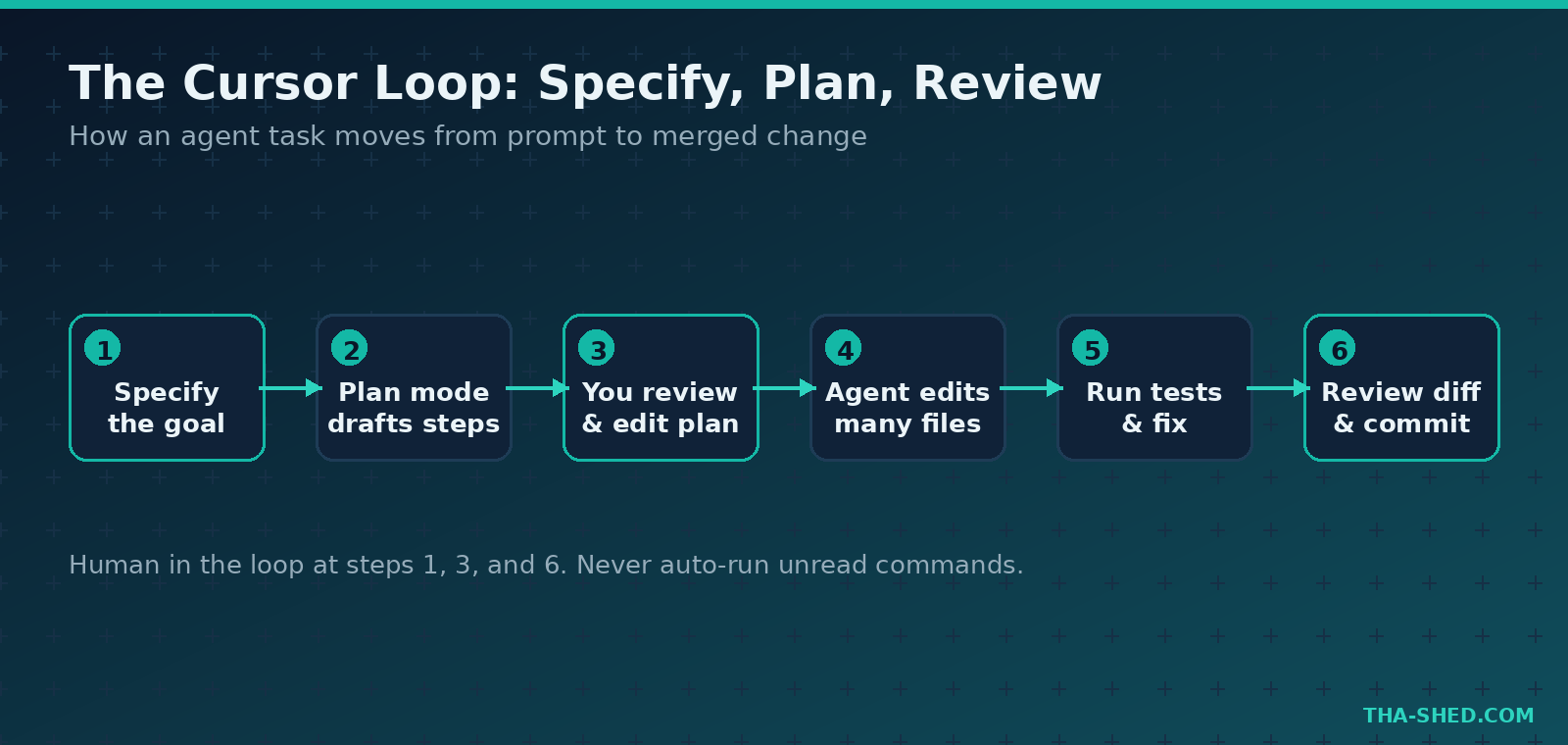
The engineers who get the least from Cursor treat it like fancy autocomplete and fire off vague one-liners. The ones who get the most treat it like a junior teammate who is fast, tireless, and needs clear specs. Tell it the goal, the constraints, the files it should and should not touch, and how you will know it worked. Then let Plan mode show you its approach before it writes a line. You review the plan, not just the diff. That single habit, specify then review, is what separates “the AI broke my repo” from “the AI saved me an afternoon.”
7 workflows that pull their weight
1. Scaffold a service from a spec
Open Agent mode and describe the thing you want, not the keystrokes to build it. Example prompt: “Create a Go HTTP service with a /healthz endpoint, structured JSON logging, a Dockerfile, and a Makefile with build and test targets. Follow the layout in our existing cmd directory.” The agent creates the files, wires them together, and you review the diff before accepting. You went from blank folder to a runnable skeleton without typing boilerplate.
2. Plan before you build
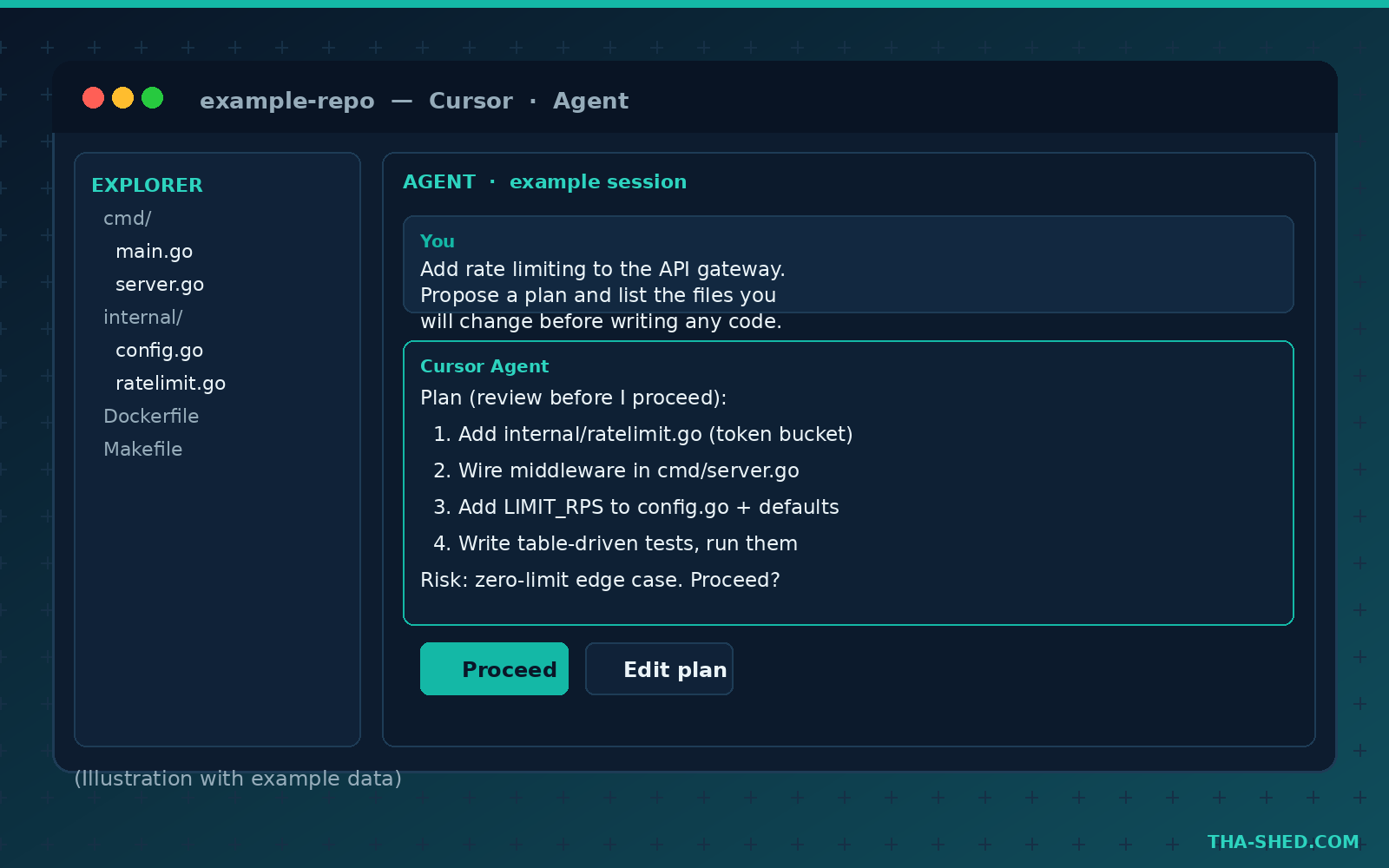
For anything bigger than a quick fix, start in Plan mode. Prompt: “We need to add rate limiting to the API gateway. Propose a plan, list the files you will change, and flag any config or migration risk before writing code.” Cursor returns a numbered plan. You edit it, delete the parts you disagree with, then tell it to proceed. This is the cheapest insurance you will buy all day.
3. Refactor across many files
This is where Composer and Tab shine. Select a pattern you want gone and ask: “Replace every direct os.Getenv call with our new config.Load helper, update imports, and leave a TODO comment anywhere the default value is ambiguous.” The agent walks the repo, makes consistent edits, and Tab keeps predicting your follow-up changes as you clean up. Multi-file refactors that used to be a grep-and-pray afternoon become a fifteen minute review.
4. Write and run the tests
Ask the agent to cover what you just wrote: “Write table-driven tests for the new rate limiter, include an edge case for the zero limit, then run them and fix anything that fails.” Cursor writes the tests, runs them in the integrated terminal, reads the output, and iterates until they pass. You are reviewing green tests instead of writing red ones.
5. Debug from a stack trace or pipeline log
Paste a failing CI log or a stack trace straight into the chat and ask: “This is the error from our build. Find the root cause and propose the smallest fix.” Because the agent can read the repo, it connects the error to the actual code path instead of guessing. For DevOps work this turns a red pipeline into a targeted patch faster than scrolling through job output by hand.
6. Security review a diff before you push
Treat Cursor as a second set of eyes. Prompt: “Review the staged changes for injection risks, hardcoded secrets, missing input validation, and unsafe deserialization. List issues by severity with the file and line.” It will not replace a real security review, but it catches the obvious stuff before a human ever sees the pull request. Cursor’s Bugbot extends this into the PR itself, posting AI review comments on your repository.
7. Wire up MCP to your real stack
Add an MCP server in mcp.json and the agent can pull a Linear ticket, read a GitHub issue, or query a database as part of a task. Example: “Read the linked GitHub issue, reproduce the bug locally, and draft a fix on a new branch.” Once your tools are connected, the gap between “here is the ticket” and “here is the draft PR” gets very small. This is the feature that turns Cursor from an editor into an operator.
Safety and gotchas
Agentic editing is powerful, which means it can also be powerfully wrong. A few rules of the road. Never let the agent run shell commands you have not read, especially anything that deletes, force-pushes, or touches infrastructure. Keep work on a branch so a bad run is one git reset away. Turn on Privacy Mode if your code must never be stored or used for training, and confirm that setting before you open a sensitive repo. Be skeptical of secrets: tell the agent in your rules to never print or commit credentials, and scan diffs yourself. And remember that connecting MCP servers widens what the agent can reach, so only connect tools you actually trust it to use.
Cost and usage tips
Cursor runs on a usage credit model where your plan price maps to a monthly pool, and picking a frontier model manually draws it down faster than letting Auto mode choose. Lean on Auto for routine edits and save the expensive frontier runs for genuinely hard problems. Use Tab and Composer for the high-volume small stuff, since they are fast and cheap relative to running a full agent loop. If you keep hitting limits on Pro, measure a week of real usage before jumping to Pro+ or Ultra. Teams should turn on usage analytics so you are tuning spend with data instead of vibes.
FAQ
Is Cursor better than GitHub Copilot for DevOps work?
They overlap, but Cursor leans harder into autonomous multi-file editing and whole-repo context, while Copilot is deeply native to GitHub. Many engineers run both. If you want a deeper comparison, see our GitHub Copilot tutorial and judge against your own workflow.
Do I need to know how to code to use Cursor?
You will get value faster if you can read code and judge a diff. Cursor accelerates engineers, it does not replace the judgment of knowing whether a change is correct, secure, and maintainable. That review skill is the part worth investing in.
Is my code safe with Cursor?
Cursor offers a Privacy Mode that keeps your code from being stored on its servers or used to train models, and Teams plans add SSO and admin controls. As with any cloud AI tool, read the current data handling docs and set policy before pointing it at regulated or proprietary code.
Where to go from here
Install Cursor, import your VS Code setup, and spend one afternoon running these seven workflows on a real repo. Start with Plan mode, keep everything on a branch, and write a short .cursor/rules/ file so the agent matches your conventions. If you want a structured path from here into DevOps and security skills that pair well with AI tooling, take a look at our courses. The engineers winning right now are not the ones who fear these tools. They are the ones who learned to drive them.