Most people use GitHub Copilot like fancy autocomplete. Tab, tab, tab, done. That was fine in 2023. In 2026, Copilot is a full agent platform that can plan work, edit across files, run your terminal, open pull requests while you sleep, and review code before a human ever sees it. If you are still only accepting grey ghost text, you are paying for a power tool and using it as a paperweight.
This tutorial covers what Copilot actually is now, how to set it up fast, the mindset shift that separates productive users from frustrated ones, and seven concrete workflows you can steal today.
What GitHub Copilot Is in 2026
Copilot is no longer one feature. It is a stack: inline code completions, Copilot Chat, agent mode inside VS Code, JetBrains, and Visual Studio, an asynchronous cloud coding agent that works on GitHub itself, Copilot code review for pull requests, and a Copilot CLI for terminal-first work. It supports the Model Context Protocol (MCP), so agents can reach databases, APIs, and your own custom tools. Full feature list lives in the official GitHub Copilot docs.
Pricing moved to usage-based billing in June 2026. Every plan now includes a monthly allotment of GitHub AI Credits, and code completions are free on every paid plan. The Free tier gives you 2,000 completions a month plus limited chat and agent access. Pro runs $10 a month, Pro+ is $39, and there is a Max tier at $100 with a bigger credit pool. Teams pay $19 per user for Business or $39 for Enterprise. Check the current plans page before you commit, because credit allotments and promos shift.
Quick Setup
Five minutes, start to finish. Sign in to GitHub and enable Copilot from your account settings (Free tier works for testing). Install the Copilot extension in VS Code or JetBrains, or use it natively in Visual Studio. Open the Chat panel and switch the dropdown from Ask to Agent. For terminal work, install the Copilot CLI per the CLI quickstart and authenticate with your GitHub account. That is it. The real setup is the next section.
The Mindset: Stop Typing, Start Delegating
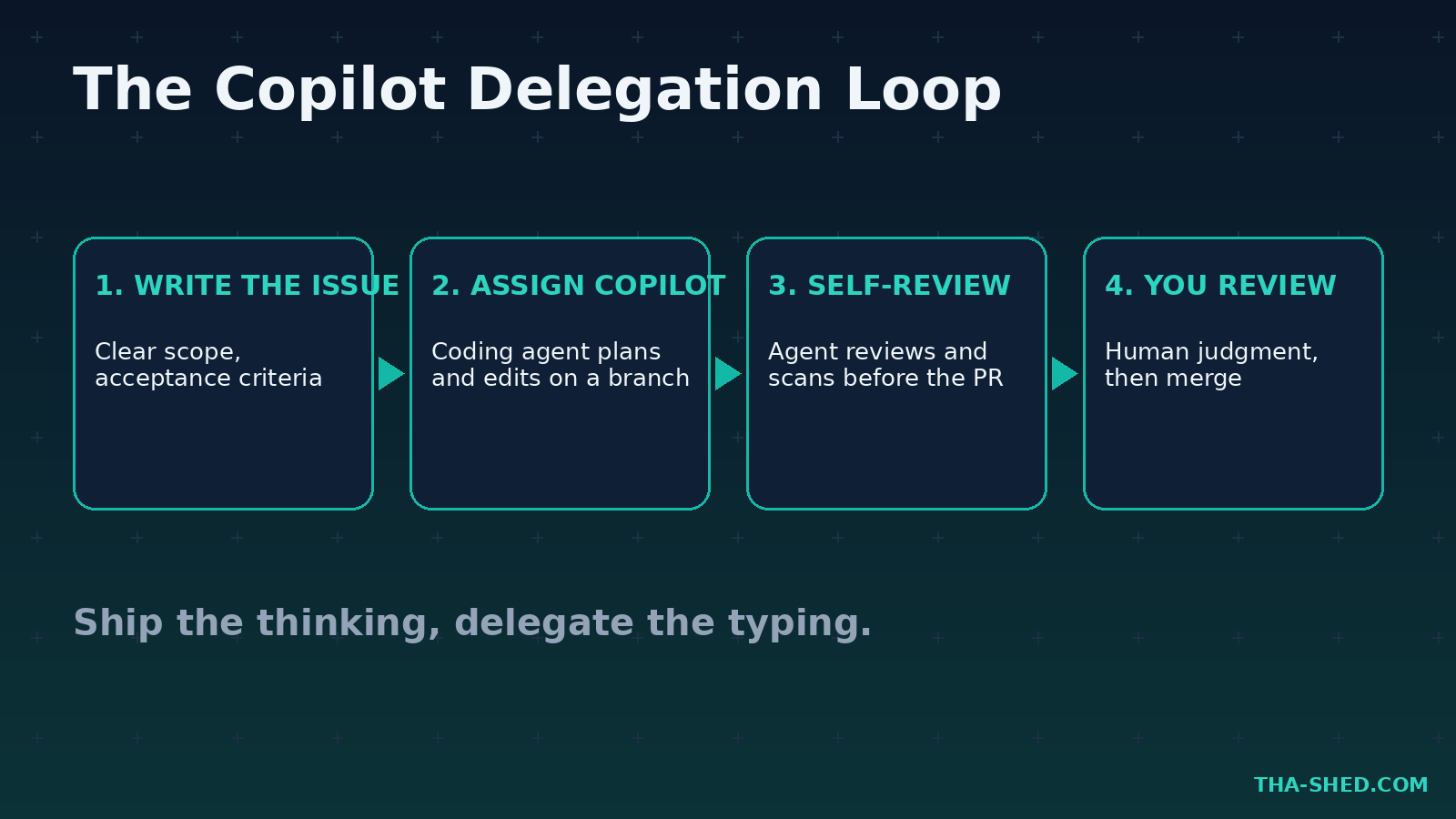
Here is the principle that changes everything: treat Copilot like a fast junior engineer, not a keyboard shortcut. Junior engineers do great work when you give them clear scope, context about the codebase, and a definition of done. They produce garbage when you say “fix it” and walk away.
That means your leverage is in writing better instructions, not accepting more suggestions. Spend your effort on the issue description, the custom instructions file, and the review. Ship the thinking, delegate the typing. Everything below flows from that.
7 Workflows That Actually Save Hours
1. Give your repo a brain with custom instructions
Create a .github/copilot-instructions.md file in your repo. Document your stack, naming conventions, test framework, and the things Copilot keeps getting wrong. Every chat and agent request in that repo now starts with this context. Example content: “This is a Python 3.12 FastAPI service. Use pytest, not unittest. All new endpoints need a rate limit decorator. Never log request bodies.” Ten minutes of writing, permanent payoff.
2. Use agent mode for multi-file changes
In VS Code or JetBrains, switch Chat to Agent and give it a real task: “Add a soft-delete column to the users model, update the repository layer, and fix every query that assumes hard deletes.” Agent mode analyzes the workspace, plans steps, edits across files, runs the build, and fixes its own errors. Review the diff like you would a teammate’s PR.
3. Assign issues to the cloud coding agent
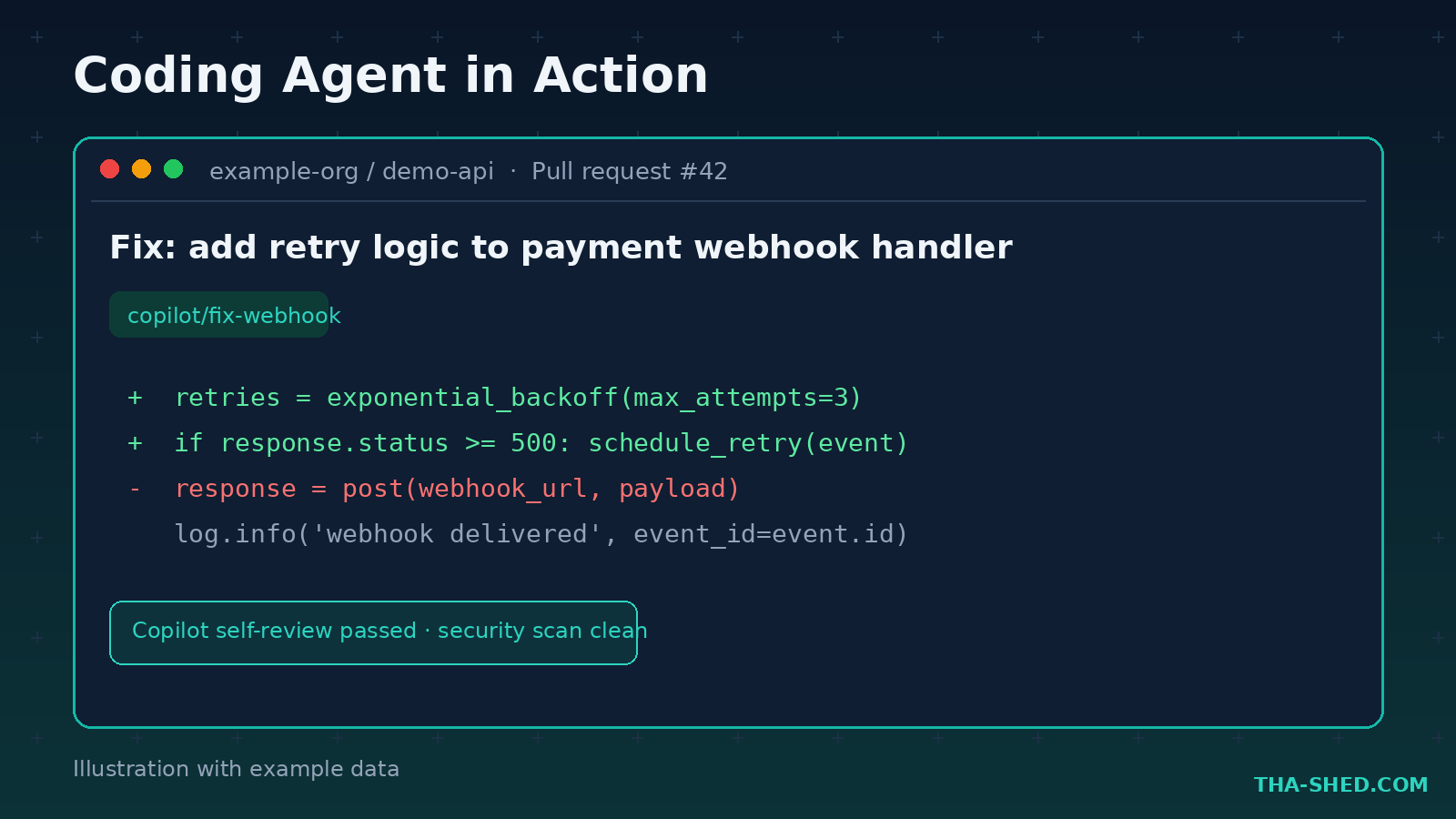
This is the big one. On GitHub, assign an issue to Copilot the same way you would assign a person. The cloud coding agent researches your repo, makes changes on its own branch, reviews its own work with built-in security scanning, then opens a draft PR for you. Assign three small issues before a meeting, come back to three PRs. Best targets: bug fixes with clear reproduction steps, test coverage gaps, and dependency chores.
4. Make Copilot code review your first reviewer
Enable Copilot code review on your pull requests. It catches the boring stuff: missing null checks, obvious injection risks, inconsistent error handling. Your human reviewers then spend their attention on architecture and intent instead of typos. For cybersecurity folks, this is a cheap extra control in the pipeline, not a replacement for your SAST tooling.
5. Live in the Copilot CLI for ops work
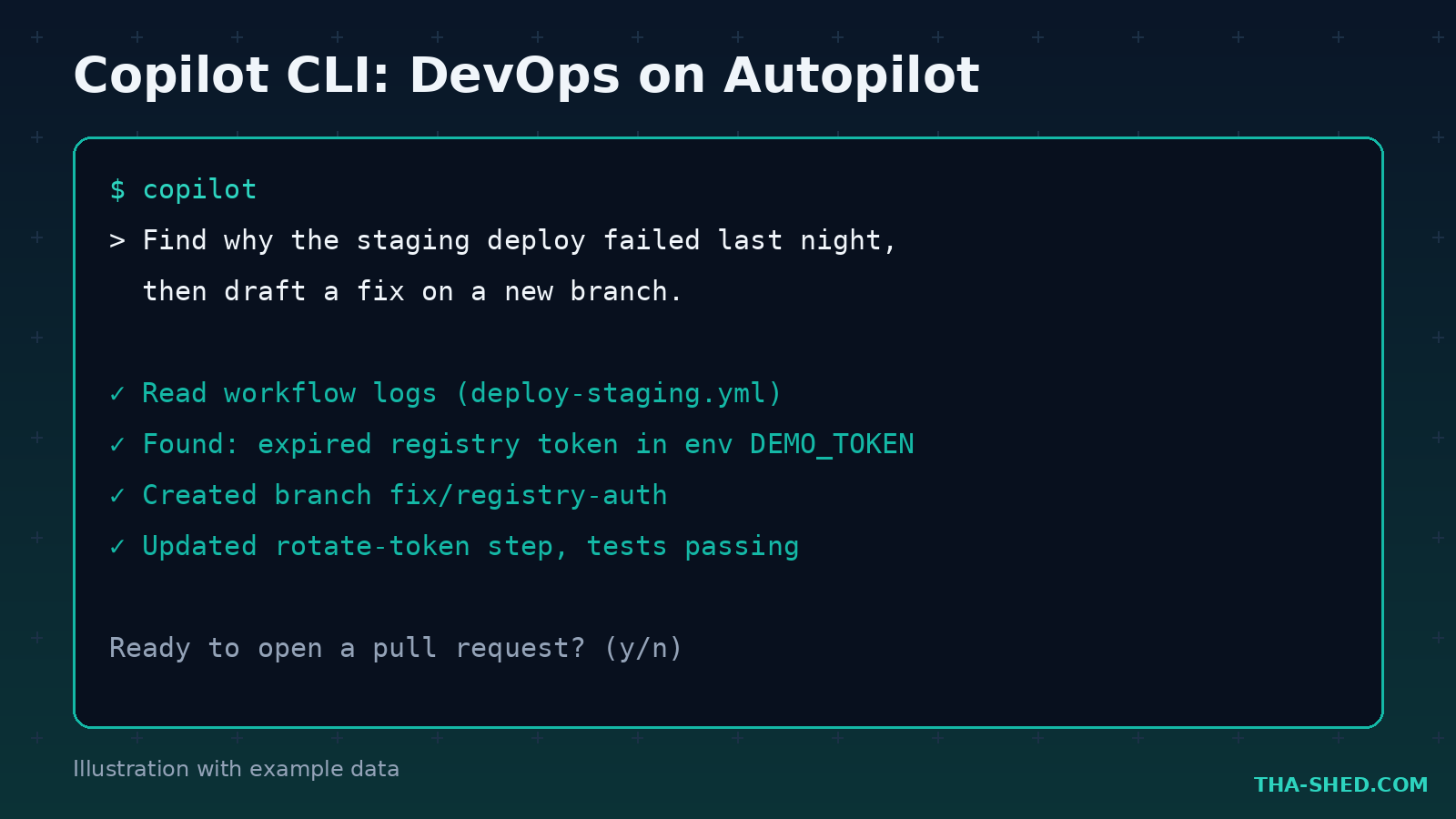
DevOps work happens in the terminal, and the Copilot CLI meets you there. Try: “Find why the staging deploy failed last night, then draft a fix on a new branch.” It reads logs, proposes commands, and asks before running anything destructive. It supports custom agents, hooks, and MCP servers, and you can approve tools per session so it never runs wild.
6. Wire in MCP servers for real context
Out of the box, agents only see your code. Add MCP servers and they can query your database schema, hit internal APIs, or pull tickets. The GitHub MCP server alone lets agent mode read issues and PRs without you pasting anything. Configure once, then prompts like “implement the fix described in issue 218” just work.
7. Automate recurring prompts with Actions and scheduled runs
The CLI runs programmatically, which means GitHub Actions can run Copilot on a schedule. Nightly dependency audits, weekly “find dead code” sweeps, auto-drafted release notes. Anything you would prompt manually every Friday is a candidate for automation. See automating with Copilot CLI.
Safety and Gotchas
First, never merge agent PRs without reading them. Self-review catches a lot, but the agent optimizes for plausible, not correct. Second, watch for context poisoning: agents read your repo, so a malicious issue or README can smuggle instructions into the model. Treat agent output from public repos with the same suspicion you treat user input. Third, secrets. Do not paste tokens into chat, and scope the CLI’s allowed tools tightly. Fourth, license and compliance: if you work somewhere regulated, confirm your org has the duplication filter and policy controls enabled on Business or Enterprise before agents start committing code. We covered the governance side in our guide to successful agentic AI deployment.
Cost and Usage Tips
Completions are free on paid plans, so be liberal with tab-complete and stingy with agent runs. Agent sessions burn AI Credits, and premium models burn them faster. Use the default model for routine chores and save the premium model picker for gnarly debugging. Batch small fixes into one coding agent issue instead of five separate runs. Start on Free to learn the workflows, upgrade to Pro at $10 when you hit the monthly limits, and only consider Pro+ when you are running the cloud agent daily.
FAQ
Is GitHub Copilot free to use?
There is a permanent Free tier with 2,000 code completions per month plus limited chat and agent mode access. Paid individual plans start at $10 a month and include unlimited completions plus a monthly AI Credit allotment for agent and premium model usage.
What is the difference between agent mode and the coding agent?
Agent mode runs inside your IDE, synchronously, while you watch and steer. The coding agent runs in the cloud on GitHub infrastructure: you assign it an issue, it works asynchronously on a branch, and it delivers a pull request. Use agent mode when you want control, the coding agent when you want throughput.
Can GitHub Copilot be trusted with security-sensitive code?
Trust it the way you trust any contributor: with review gates. The coding agent includes built-in security scanning and self-review, but you should still require human approval on protected branches, run your normal SAST and dependency scanning, and keep secrets out of prompts and context.
Put It to Work This Week
Pick one repo. Write a custom instructions file, assign one well-scoped issue to the coding agent, and turn on Copilot code review. That is one hour of setup for a permanent productivity floor raise. If you want to go deeper on AI-assisted DevOps and security careers, check out our courses and start building the skills that make these tools multiply your value instead of replacing it.