Most people use ChatGPT like a slightly smarter search box. They paste a question, copy an answer, and move on. That works, but it leaves the real value on the table. For DevOps, security, and AI practitioners, ChatGPT is closer to a tireless junior engineer that can read your runbooks, draft your manifests, and run a multi-step task while you grab coffee. The difference is not the model. It is how you set it up and the workflows you build around it.
This is a practical, opinionated guide to getting real work done with ChatGPT in 2026. No hype. Just setup, a mindset that matters, seven workflows you can use this week, and the gotchas that bite you if you ignore them.
What ChatGPT actually is now
ChatGPT is OpenAI’s assistant built on the GPT-5 family of models. The current flagship reasoning model on paid plans is GPT-5.5, with lighter “instant” variants for fast back-and-forth. The product is no longer just a chat window. It includes Projects for organizing work, Agent mode for multi-step tasks, Deep Research for long-form investigation, Canvas for editing documents and code side by side, Custom GPTs you can configure once and reuse, scheduled Tasks, and apps (formerly called connectors) that pull in your Google Drive, GitHub, and other tools.
The short version for a technical audience: it can reason about code and infrastructure, act in steps instead of one shot, and remember your context if you let it.
Quick setup
Start free to see if it fits your flow, then pick a tier deliberately. As of mid-2026, the lineup is Free at $0, Go at roughly $8 a month, Plus at $20, Pro at $200, plus Business and Enterprise seats for teams. Plus is the sweet spot for most individual engineers: you get the strong models, image generation, Advanced Voice, Agent mode, Canvas, Tasks, and Custom GPT creation. Pro mostly buys you much higher usage limits and the top-end Pro model, which matters if you live in the tool all day.
Three setup moves pay off immediately. First, fill in custom instructions so ChatGPT knows your role, your stack, and how blunt you want it. Second, on Business or Enterprise, connect the apps for Drive and GitHub so it can reference real files. Third, turn off model training on your data if you handle anything sensitive, which is on by default for consumer plans and off for Business and Enterprise.
The one principle that changes everything
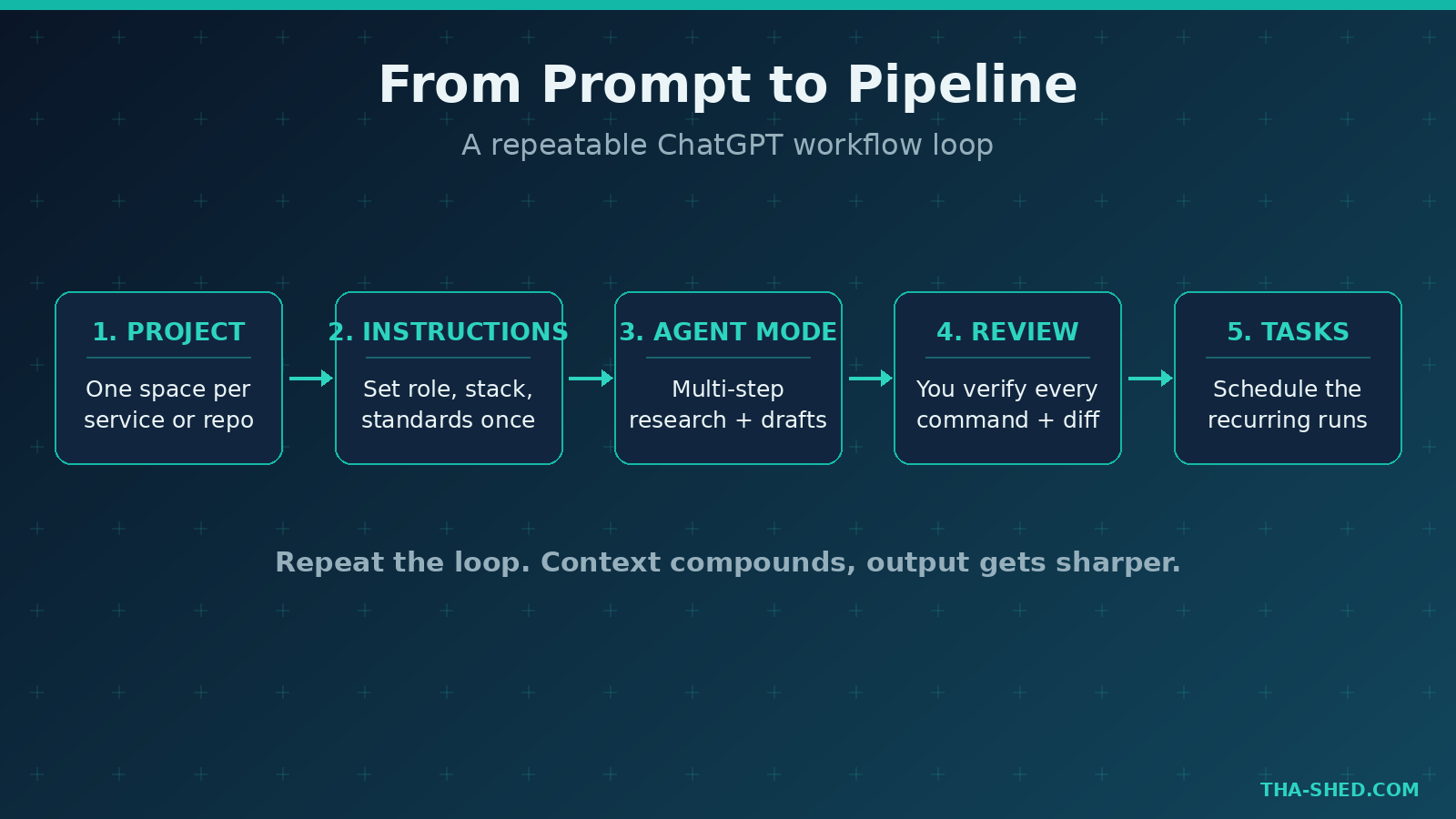
Treat ChatGPT like a smart contractor, not an oracle. You would never hand a contractor a one-line brief and ship the result unseen. Same rule here. Give it context, give it constraints, and review the output before it touches anything real.
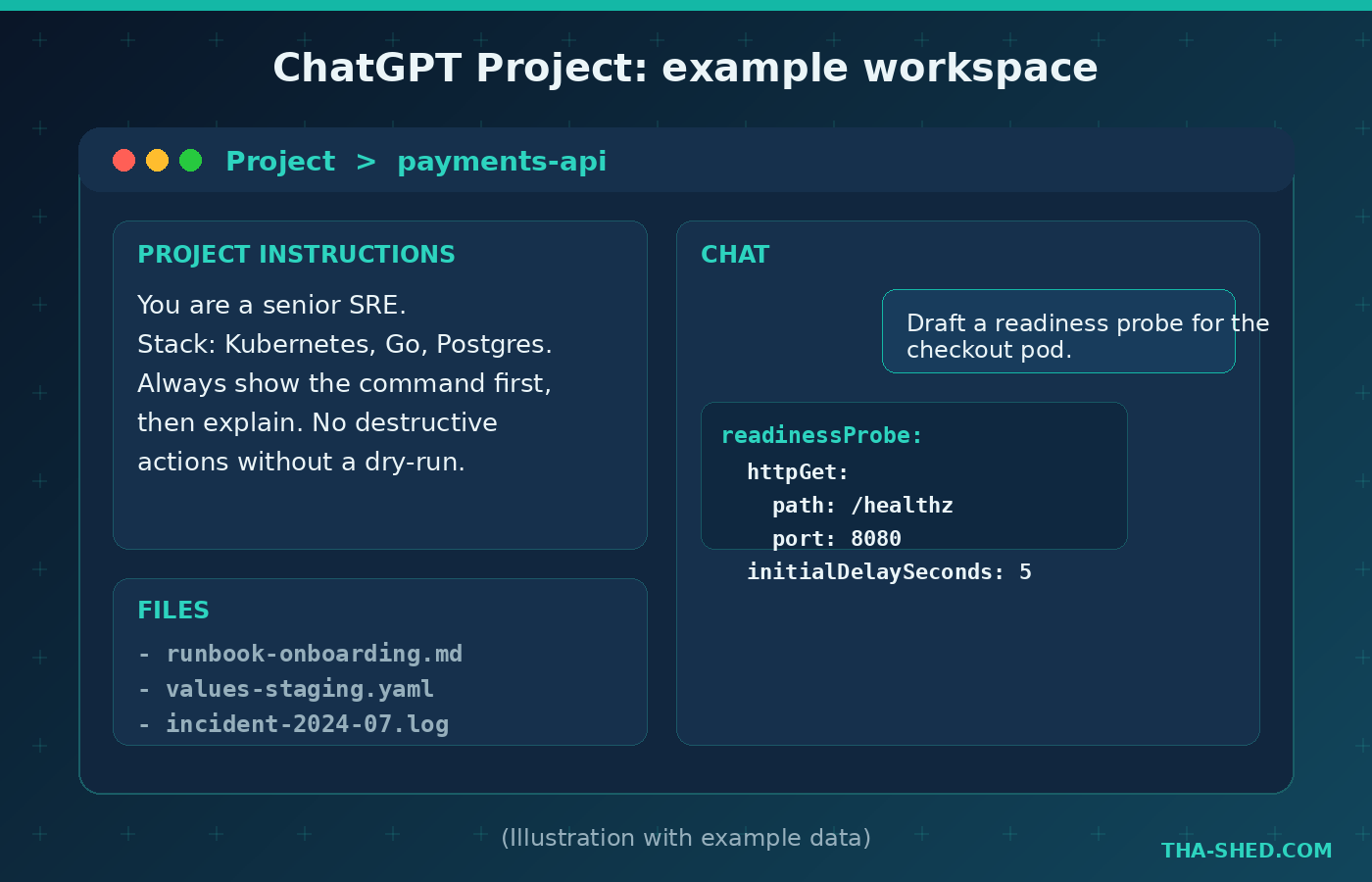
In practice that means front-loading your prompts. Tell it the role, the environment, the format you want back, and what it must never do. A prompt that opens with “You are a senior SRE on a Kubernetes and Go stack, never suggest destructive commands without a dry-run flag” beats “how do I fix this pod” every time. Context is leverage. Spend it.
7 workflows that save real hours
1. Spin up a Project per service or repo
Projects are dedicated spaces that hold chats, files, and instructions in one place, so you stop restating the same background every time. Create one per service. Drop in the runbook, a sample values file, and a few past incident notes, then set project instructions describing the stack and your standards. Every chat inside that project inherits the context. You can read the official overview in OpenAI’s Projects documentation.
2. Turn errors into root cause, fast
Paste a stack trace or a failing log block and ask for ranked hypotheses, not just a fix. Example prompt: “Here is a 500 from our checkout service and the surrounding logs. Give me the three most likely root causes ranked by probability, the command to confirm each, and the smallest safe fix for the top one.” Ranking forces it to reason instead of guessing, and the confirm step keeps you in control.
3. Draft and harden infrastructure code
ChatGPT is strong at first-draft YAML, Terraform, and shell. Ask it to write a Kubernetes readiness probe, a GitHub Actions job, or a Terraform module, then immediately ask it to critique its own output for security and edge cases. Example: “Now review that workflow as a security engineer. Flag any secret exposure, over-broad permissions, or missing pinning.” The self-critique pass catches a surprising amount.
4. Run Agent mode for multi-step research
When a task has several steps, like “research the top three open-source secrets scanners, compare them on language support and CI integration, and draft a recommendation,” use Agent mode. It will work through the steps and come back with a structured result instead of forcing you to prompt each stage. Treat the output as a strong draft you verify, not a final decision.
5. Build a Custom GPT for repeat chores
If you keep writing the same kind of prompt, bake it into a Custom GPT. A “Post-Incident Writer” GPT with your template baked in, or a “Dockerfile Reviewer” with your hardening checklist, saves you from re-explaining context daily. Configure it once, then call it like a tool.
6. Schedule recurring work with Tasks
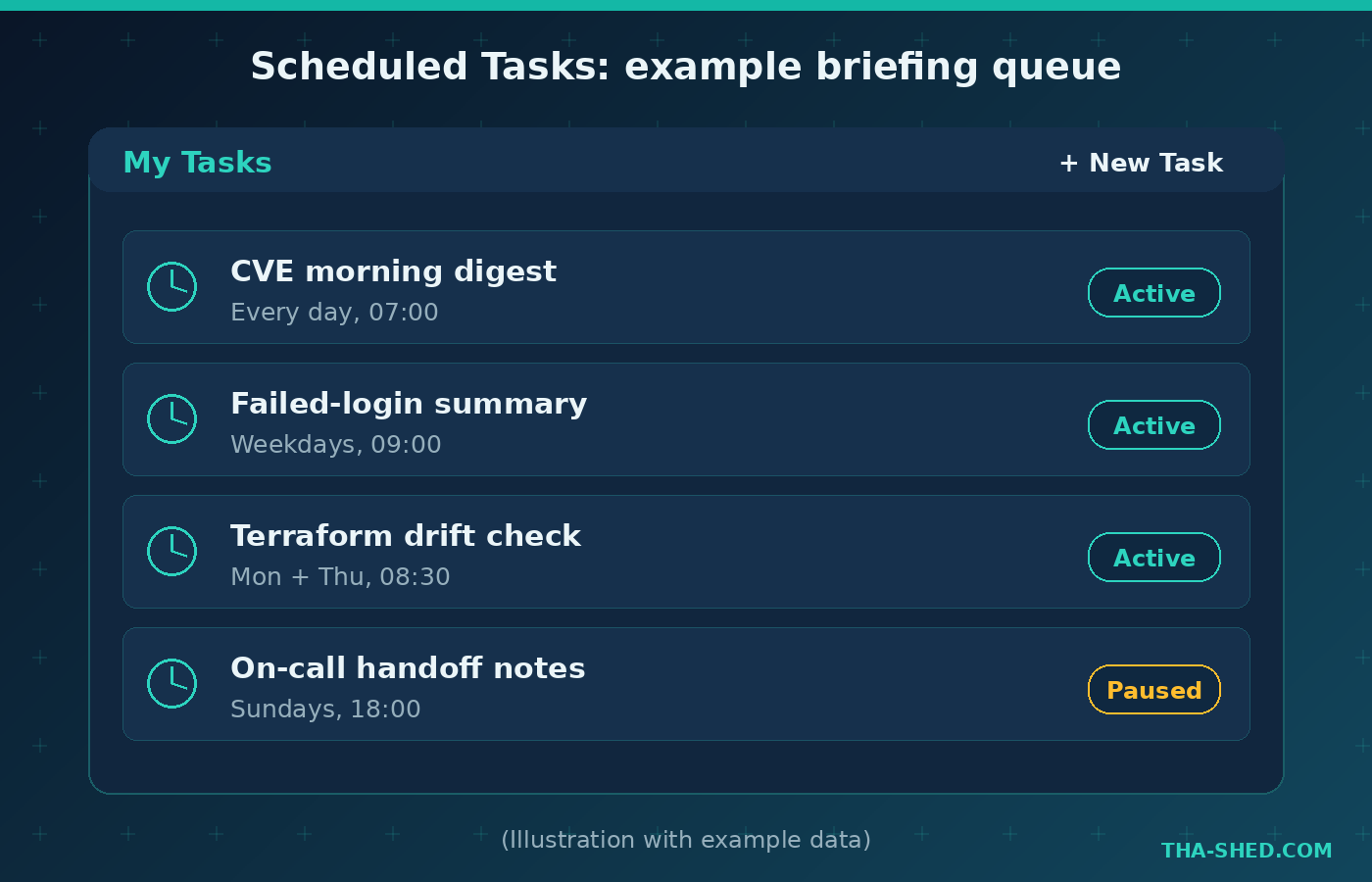
After a chat completes, click the clock icon and set a schedule. Manage everything at the schedules page. Useful recurring runs for this audience: a morning digest of new CVEs relevant to your stack, a weekly summary of repo activity, or a Monday drift-check reminder with the exact commands to run. It will not run your infra for you, but it will hand you the briefing on time.
7. Use it as a teaching machine
The fastest way to level up is to ask ChatGPT to explain its own answers. After it writes a regex or a complex query, ask “explain this line by line, then quiz me on it.” It is a patient tutor for the certs you are chasing. If you are working toward a cert, combine it with the guided paths in our courses or the hands-on DevOps Coach.
Safety and gotchas
Never paste secrets, customer data, or proprietary code into a consumer plan with training enabled. If it is sensitive, use a Business or Enterprise workspace where your data is not used for training, or redact first. This is the single most common mistake security pros make with these tools.
Watch for confident wrong answers. Models still hallucinate commands, flags, and API endpoints that look plausible and do not exist. Verify every command before you run it, especially anything destructive.
Finally, mind prompt injection if you connect apps or browse. Content from a webpage or a file can carry instructions that try to hijack the model. Keep a human in the loop for anything that writes, deletes, or sends.
Cost and usage tips
Most engineers do not need the $200 Pro tier. Start on Plus, and move up only if you constantly hit limits on the heavy reasoning model. Use the faster instant model for quick lookups and save the slow reasoning model for genuinely hard problems, which conserves your message budget. For teams, Business seats add admin controls, shared workspaces, and the no-training guarantee.
One more habit: keep a personal prompt library. A short text file of your best prompts for incident writeups and infra drafts saves more time than any plan upgrade.
FAQ
Is ChatGPT safe to use for work code?
It can be, on the right plan. Business and Enterprise workspaces do not train on your data and add admin controls. On consumer plans, turn off training and avoid pasting secrets or regulated data. When in doubt, redact.
Which ChatGPT plan is best for a DevOps or security engineer?
Plus at $20 a month covers almost everyone: strong models, Agent mode, Projects, Custom GPTs, and Tasks. Move to Pro only if you hit usage limits daily, and to Business if your team needs shared workspaces and a no-training guarantee.
How is ChatGPT different from coding assistants like Copilot or Cursor?
ChatGPT is a general reasoning and research assistant that happens to be good at code. Tools like Copilot and Cursor live inside your editor and are tuned for in-line completion and repo-aware edits. Many pros use both. See our GitHub Copilot tutorial for the editor side of the workflow.
The bottom line
ChatGPT rewards engineers who treat it like a capable teammate instead of a vending machine. Set up your context once, build a few repeatable workflows, verify everything before it ships, and you will claw back hours every week. The pros who win with AI are not the ones who use it the most. They are the ones who use it deliberately. Start with one Project today, wire up one scheduled Task, and build from there. When you are ready to turn these habits into career momentum, our courses will take you the rest of the way.