GitHub Copilot stopped being a fancy autocomplete a while ago. In 2026 it writes, runs, tests, and reviews code, and it does a lot of that work without you babysitting every keystroke. The problem is that most people still use it like it is 2023. They accept a gray suggestion here and there and call it a day, then wonder why their productivity barely moved.
This is a practical, opinionated guide to getting real leverage out of Copilot. Just setup, a mindset shift, and the concrete workflows that actually save hours.
What GitHub Copilot Actually Is in 2026
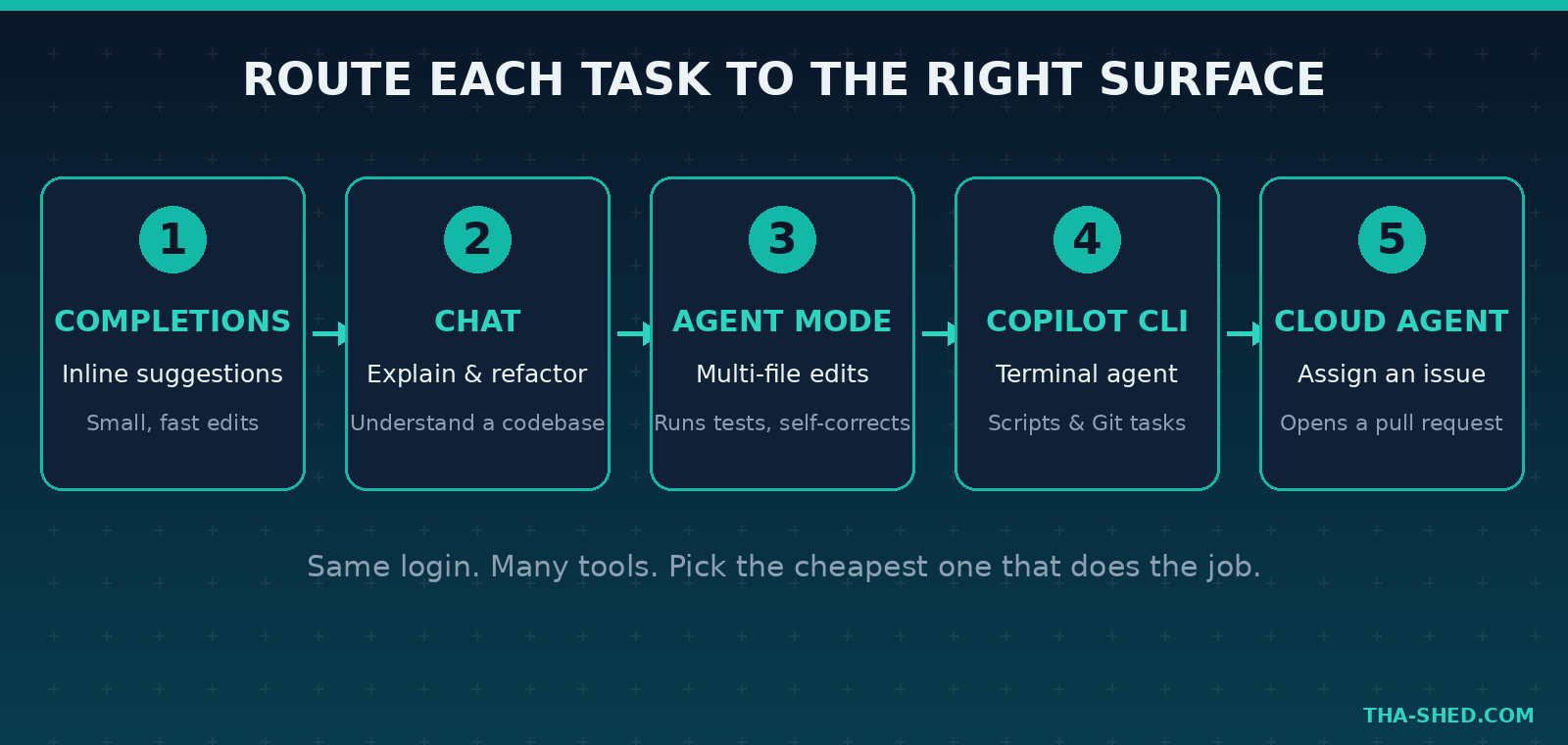
Copilot is no longer one feature. It is a family of tools that share your subscription. The pieces worth knowing:
- Code completions. The classic inline suggestions inside your editor. Still useful, still fast, still the thing you will use a hundred times a day.
- Copilot Chat. A conversation panel in VS Code, JetBrains, Visual Studio, and on GitHub.com. Ask it to explain code, refactor, or write tests.
- Agent mode. An autonomous peer programmer inside your editor. It reads your codebase, edits multiple files, runs terminal commands, watches the test output, and loops until the task is done. It reached VS Code Stable and added support for MCP servers, so you can plug in external tools.
- Copilot coding agent. A cloud agent you assign a GitHub issue to. It spins up its own environment powered by GitHub Actions, does the work, and opens a pull request for you to review.
- Copilot CLI. A terminal-native agent that went generally available in February 2026. It plans, builds, runs tests, and remembers context across sessions, all from your command line.
Same login, many surfaces. Once that clicks, you stop thinking of Copilot as “the autocomplete” and start routing each task to the right tool.
Quick Setup
Pick a plan first. There are five: Free, Pro at ten dollars a month, Pro+ at thirty nine dollars a month, Business at nineteen dollars per user, and Enterprise at thirty nine dollars per user. The Free tier is a real trial, not a toy. It gives you a couple thousand completions, fifty chat messages, and fifty premium requests each month. Verified teachers and maintainers of popular open source projects can get Pro at no cost, though note that GitHub paused new sign-ups for its free student plan in April 2026.
Then install where you work:
- VS Code: install the GitHub Copilot extension from the marketplace, sign in with your GitHub account, and the Chat and Agent panels appear in the sidebar.
- JetBrains or Visual Studio: install the Copilot plugin or component, sign in, done.
- Terminal: install Copilot CLI, run the login command, and start prompting from any repo folder.
Two minutes of setup. The leverage comes from how you use it after that.
The Mindset: Treat Copilot Like a Junior Teammate, Not a Magic Oracle
Here is the principle that separates people who get value from people who get frustrated. Copilot is a fast, eager junior engineer with a huge memory and zero context about your intentions. It will confidently do exactly what you asked, including the dumb version of what you asked.
So you manage it the way you would manage a sharp junior. Give it clear, scoped tasks. Give it the context it needs up front. Review its work before it ships. Iterate in small loops instead of writing one giant prompt and praying. The official agent mode docs say the same thing in different words: the interface is built for iteration, and short feedback loops beat one perfect prompt every time.
The single highest-leverage move is custom instructions. Drop a file at .github/copilot-instructions.md in your repo and write down your stack, conventions, and preferences. Copilot reads it on every request. One file, and suddenly every suggestion respects your linting rules, your test framework, and your naming style.
7 Concrete Workflows That Save Real Time
These are the workflows worth building muscle memory around.
1. Explain a scary codebase
You just joined a team or inherited a legacy service. Open Chat and ask: “Explain how authentication flows through this repo. Start at the login endpoint and trace it to the database.” Copilot summarizes the path across files instead of making you grep for an hour.
2. Refactor across many files with agent mode
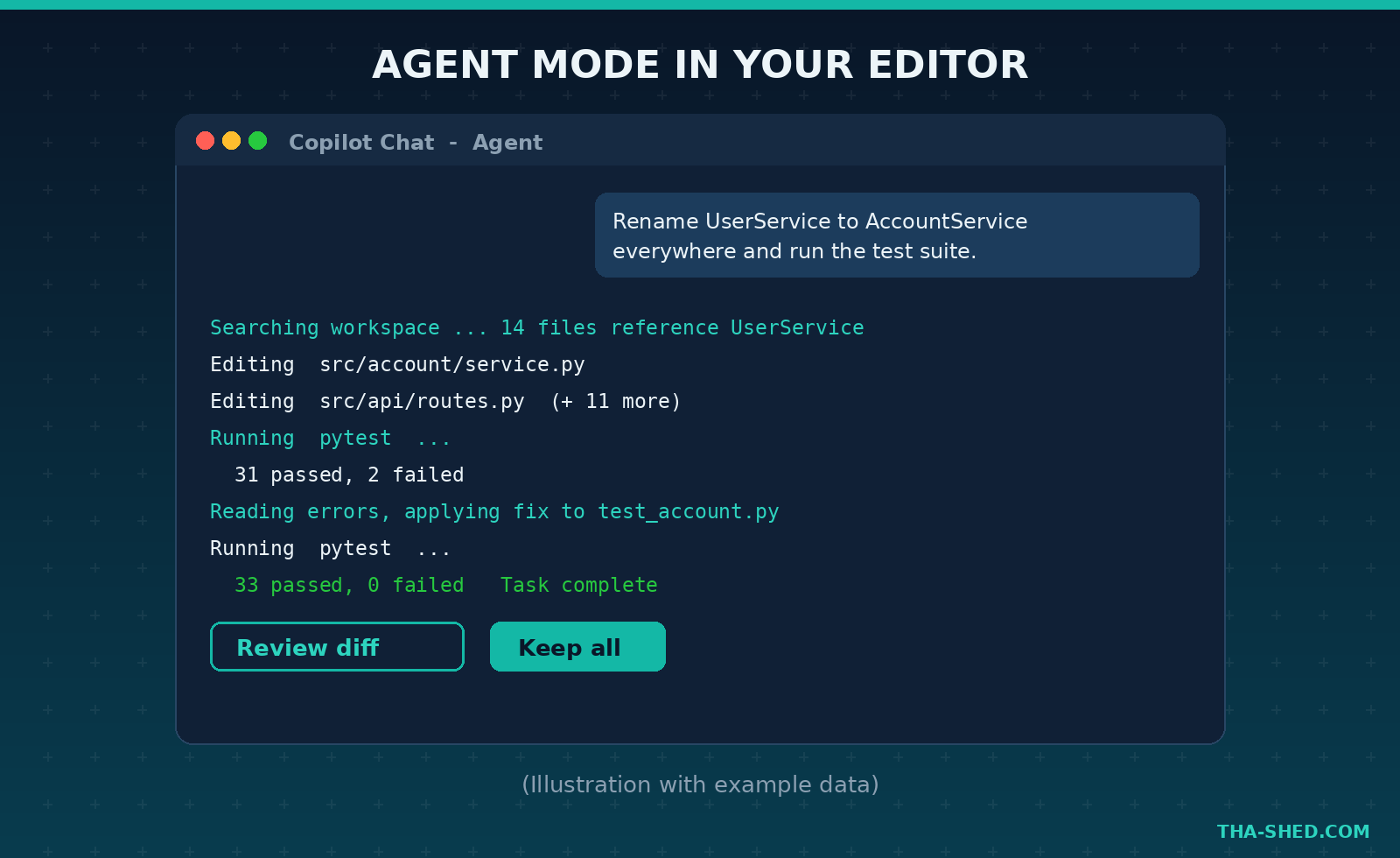
Switch the Chat dropdown to Agent, then prompt: “Rename the UserService class to AccountService everywhere, update all imports, and run the test suite.” Agent mode edits the files, runs the tests, reads the errors, and fixes what it broke. You review the diff at the end.
3. Write tests you keep skipping
Select a function and ask: “Write unit tests for this covering the empty input, the happy path, and the error case. Use pytest.” Tests are the task people avoid most, which makes them the highest return on a single prompt.
4. Delegate a whole ticket to the cloud agent
Assign a GitHub issue to the Copilot coding agent with a clear description like “Add rate limiting to the public API, 100 requests per minute per key, return a 429 with a retry header.” It works in the background and opens a pull request. You stay in your editor while it grinds.
5. Drive your terminal with Copilot CLI
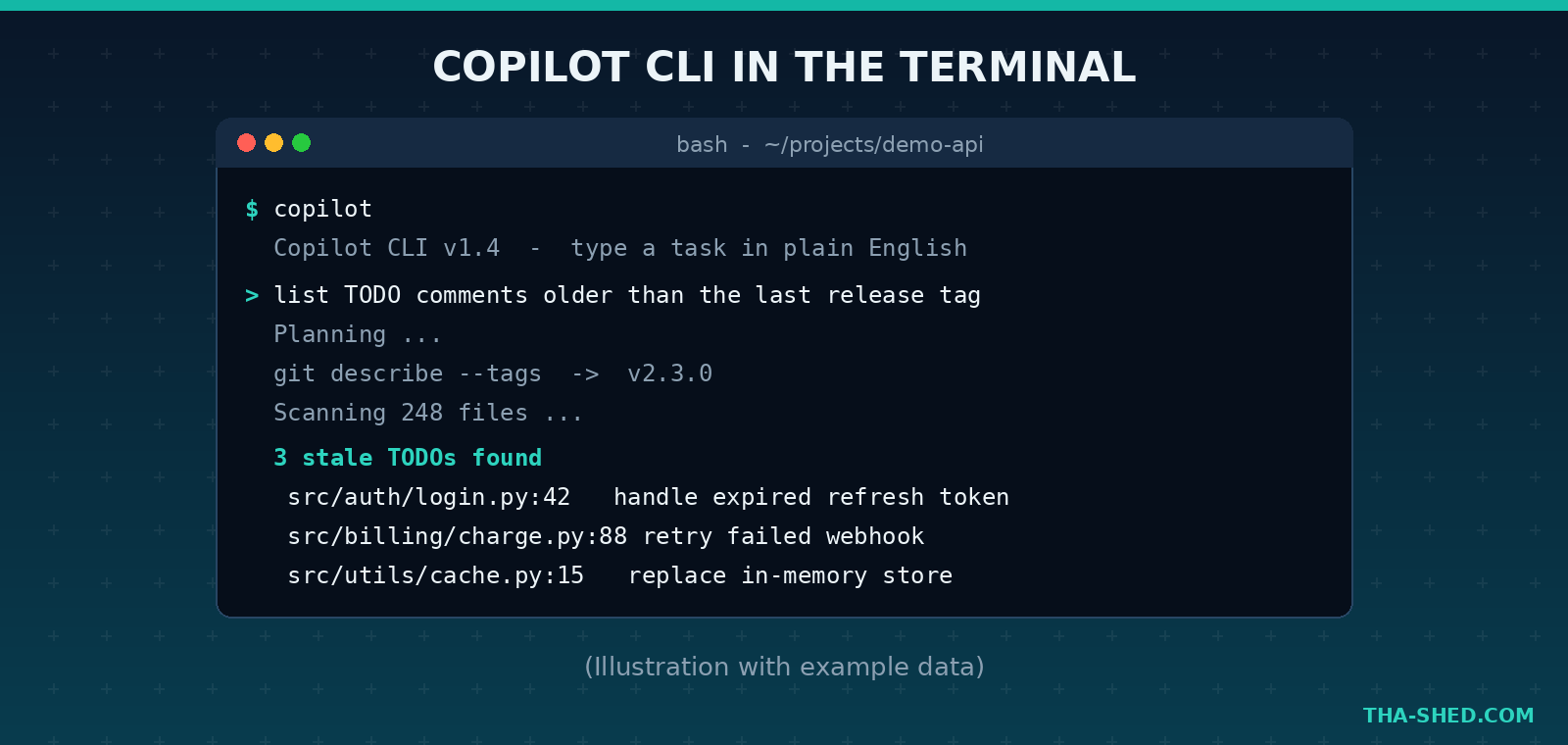
From your repo run a prompt such as “Find every TODO comment older than the last release tag and list the files.” The CLI plans the steps, runs the commands, and reports back. It is genuinely useful for Git archaeology, log spelunking, and one-off scripts.
6. Use the built-in critic before you ship
Copilot CLI added a “rubber duck” agent that acts as a constructive critic. Hand it your plan or implementation and ask it to find blind spots. It catches the obvious mistakes you stop seeing after staring at code for three hours.
7. Generate a pull request review pass
On GitHub.com, ask Copilot to review a pull request and flag security issues, missing error handling, and N plus one queries. It is not a replacement for a human reviewer, but it clears the low-hanging fruit so your teammates focus on the hard parts. If you want to sharpen that habit, our Code Reviewer tool pairs nicely with this.
Safety and Gotchas
Speed is great until it ships a bug or a secret. A few rules keep you safe.
Read the diff, always. Agent mode and the cloud agent can touch many files at once. Never merge what you did not read.
Never paste secrets into prompts. API keys, tokens, and customer data do not belong in a chat box. Treat the prompt window like a public channel.
Watch terminal commands. Agent mode asks before running terminal commands. Keep that approval on. An autonomous agent running an unreviewed shell command in your repo is exactly the horror story you do not want.
Verify the confident wrong answer. Copilot will state something false with total conviction. For security-sensitive code, auth logic, crypto, and anything that touches money, you verify by hand. If this sounds familiar, it is the same discipline we cover in our guide to agentic AI deployment.
Cost and Usage Tips
The thing that quietly drains your plan is premium requests. Standard completions are unlimited on paid tiers, but advanced models and agent runs consume premium requests, and agent mode can fire several requests per single prompt. Pro+ unlocks fifteen hundred premium requests and every frontier model, which is the tier to consider if you live in agent mode all day.
To stretch your allowance: use plain completions and edits mode for small, well-defined changes, and save agent mode for the open-ended, multi-file work where it earns its cost. Pick a cheaper model for routine tasks and switch to a frontier model only when the problem is genuinely hard.
FAQ
Is GitHub Copilot worth it if I already know how to code?
Yes, and arguably more so. Experienced engineers get the biggest gains because they can scope tasks precisely and spot bad output instantly. Copilot removes the boring middle, the boilerplate and the test scaffolding, and lets you spend your attention on design.
What is the difference between agent mode and the coding agent?
Agent mode runs inside your editor and works with you in real time on your local machine. The Copilot coding agent runs in the cloud, takes a GitHub issue, works on its own in a GitHub Actions environment, and hands you a pull request. Use agent mode for live pairing and the coding agent for tasks you want to delegate and walk away from.
Does Copilot replace developers?
No, but it changes the job. The work shifts from typing code to specifying, reviewing, and steering. The engineers who thrive are the ones who learn to direct the tool well, which is a skill you build, not a switch you flip.
Start Small, Then Scale Up
Do not try to adopt all seven workflows tomorrow. Pick one. Write a custom instructions file, then spend a week using agent mode for refactors. Once that feels natural, add the CLI, then the cloud agent. The compounding comes from habit, not from one heroic prompt.
If you want a structured path into the DevOps and AI skills that make tools like this pay off, check out our courses and the DevOps Coach. The tools keep getting smarter. The professionals who learn to direct them are the ones who stay ahead.