GitHub Copilot started life as an autocomplete that finished your lines. In 2026 it is a different animal. It plans multi-step tasks, edits files across your repo, runs your tests, reviews pull requests, and works from your terminal. For anyone advancing a career in DevOps or security, it is one of the highest-leverage tools you can master right now.
This is a practical, opinionated GitHub Copilot tutorial. No fluff. We cover what it is today, how to set it up fast, the mindset shift that makes it click, seven real workflows with prompts you can copy, the gotchas that bite security folks, and how to keep your bill sane.
What GitHub Copilot Actually Is in 2026
Copilot is no longer a single feature. Think of it as a family of capabilities that share your GitHub account and your repo context:
- Inline suggestions: the classic ghost-text completions as you type.
- Copilot Chat: ask questions about your code, generate tests, explain a stack trace, get architecture advice.
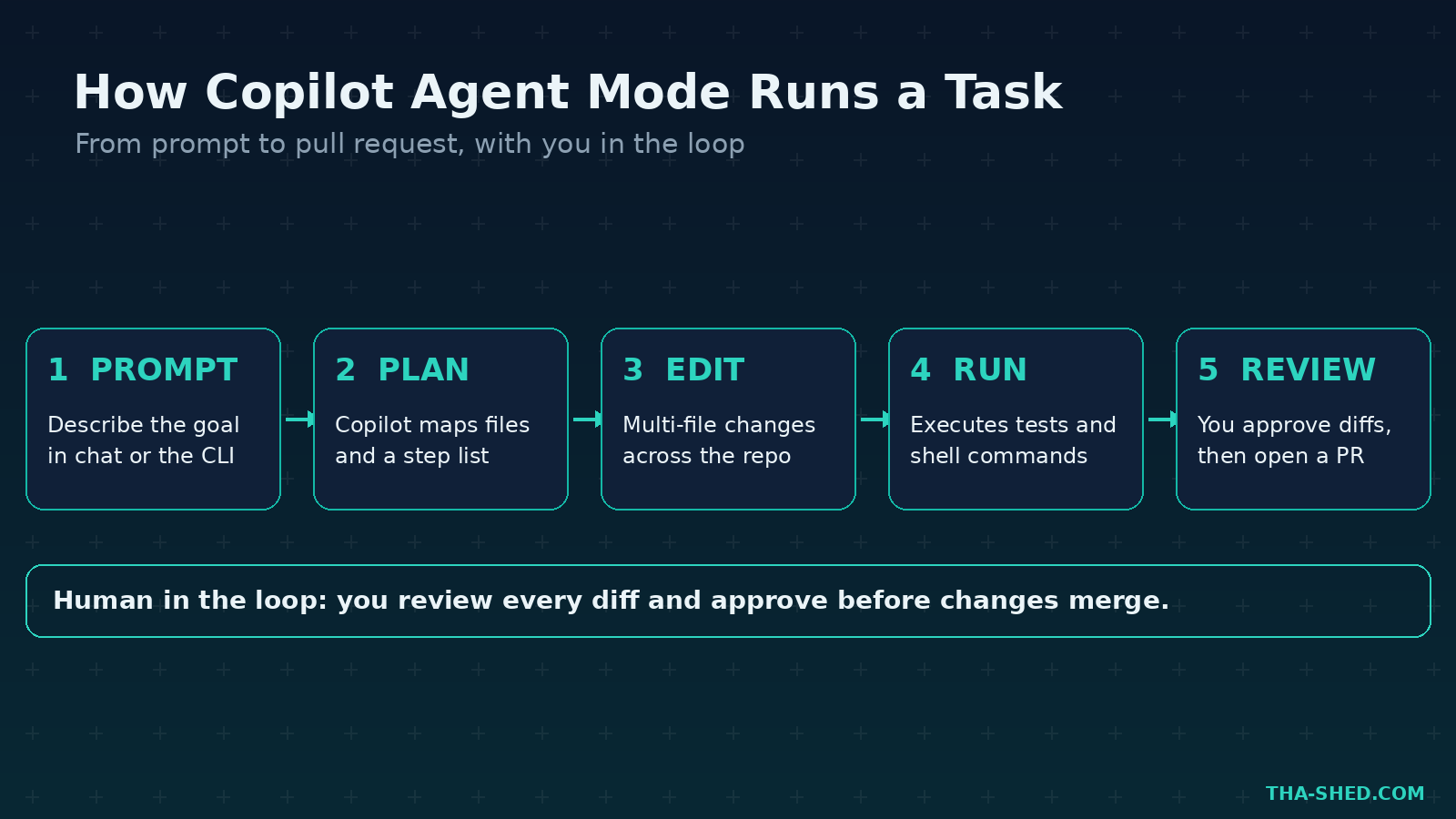
- Agent mode: Copilot plans a task, edits multiple files, runs terminal commands like pytest or npm install, then iterates until it is done. It went generally available on VS Code and JetBrains in 2026.
- Copilot CLI: a terminal-native agent, generally available since February 2026, that plans, builds, and reviews without leaving your shell.
- Coding agent: assign a GitHub issue to Copilot and it opens a pull request with a proposed fix.
- Agentic code review: Copilot reviews PRs with full project context and can hand fixes back to the coding agent.
The connective tissue across all of this is the Model Context Protocol (MCP), which lets Copilot pull in outside context and tools. If you read our Cursor tutorial, the shape will feel familiar. The difference is that Copilot lives where your code already does: GitHub.
Quick Setup
Getting started takes about five minutes.
In your editor
- Install the GitHub Copilot extension in VS Code, Visual Studio, or your JetBrains IDE.
- Sign in with your GitHub account and authorize the plan you have access to.
- Open the Chat view, then switch the dropdown from Ask to Agent. That single toggle is what unlocks the autonomous workflows below.
In your terminal
The Copilot CLI needs Node.js 22 or later. Install it with one line:
npm install -g @github/copilotThen run copilot in any repo and authenticate with your existing GitHub login. You can also install it with Homebrew or WinGet. The official install guide covers every path.
The Mindset Shift That Makes Copilot Click
Here is the principle that separates people who get value from Copilot and people who give up on it: stop treating it like autocomplete and start treating it like a fast, eager junior engineer.
A junior needs context, a clear task, and a review of their work. Copilot is no different. Vague prompts get vague output. Give it what you would give a new hire: where the relevant code lives, what “done” looks like, and the constraints that matter. Then review every diff before it merges. You stay the senior engineer. Copilot just types faster than any human alive.
7 Copilot Workflows for DevOps and Security
These are the workflows that earn their keep day to day. Steal the prompts and adapt them to your stack.
1. Ship a feature with agent mode
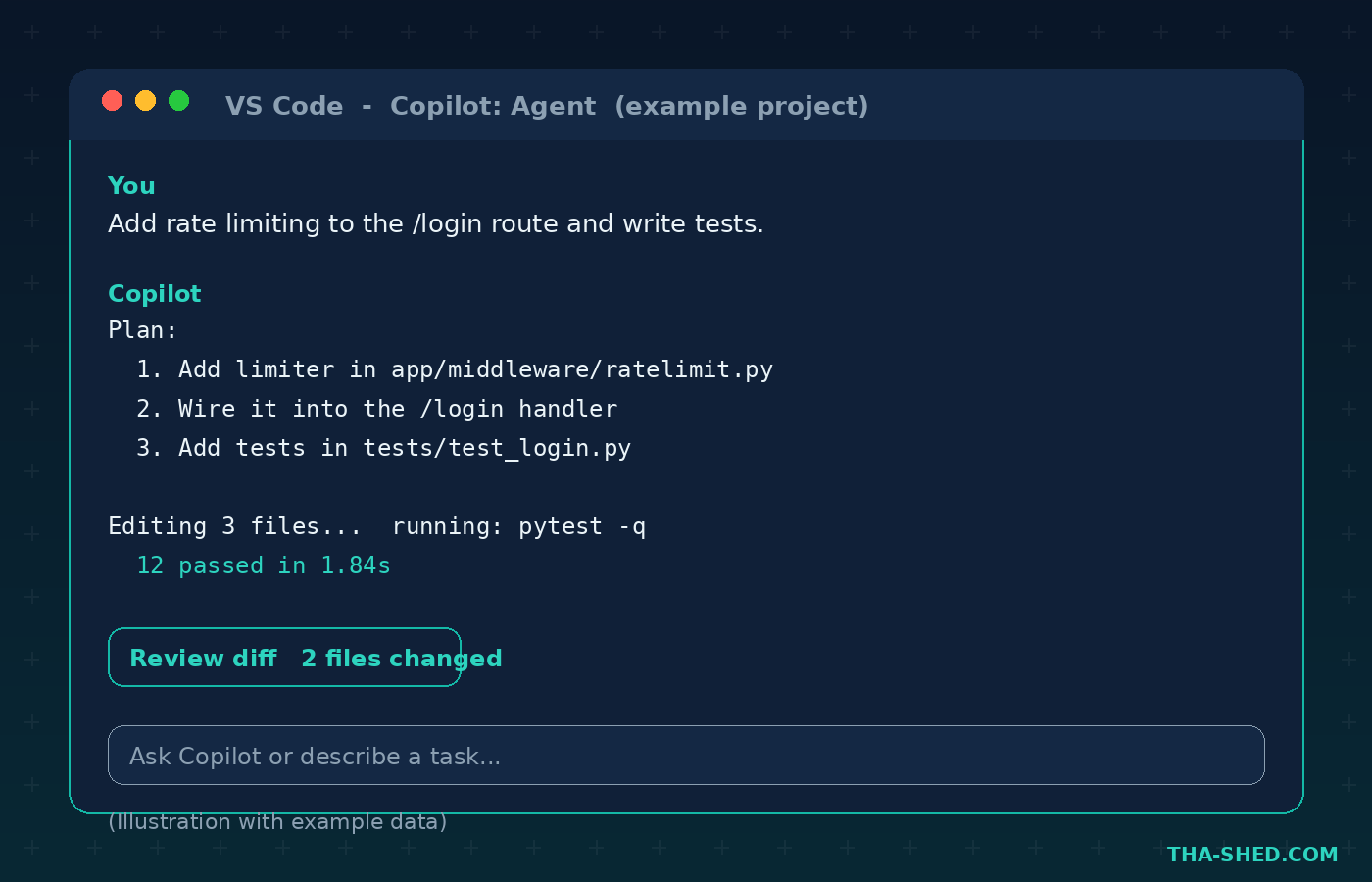
In the Chat view set to Agent, describe the outcome and let Copilot plan, edit, and test.
Prompt: “Add rate limiting to the /login route using a sliding window of 5 requests per minute per IP. Add unit tests and update the README.”
Copilot maps the files, makes the edits, runs your test command, and shows you a multi-file diff with accept and undo controls. Review it, then commit.
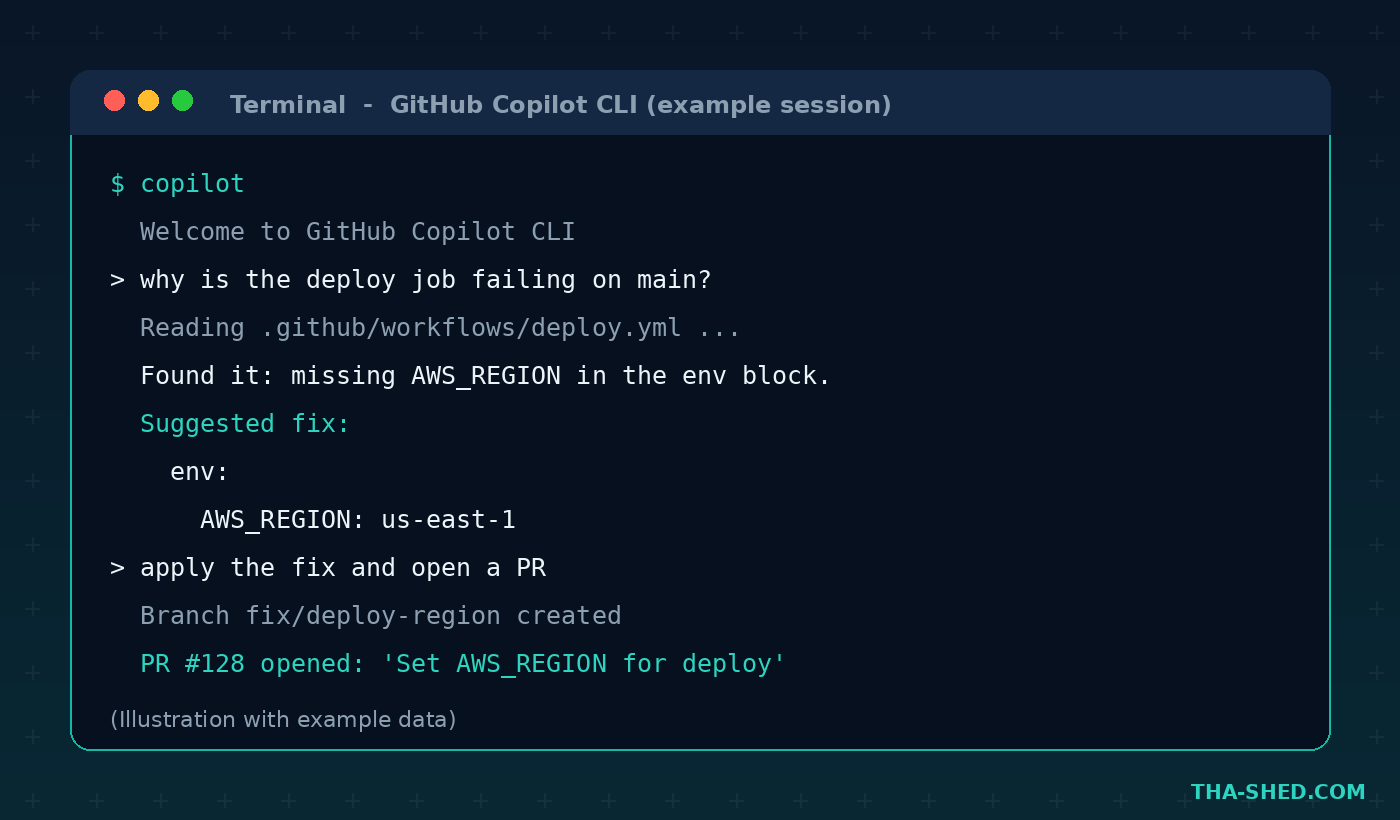
2. Debug a failing pipeline from the terminal
The Copilot CLI shines for infrastructure work because it reads your YAML and runs commands in place.
Prompt: “Why is the deploy job failing on main? Read the workflow file and the latest run logs, then suggest a fix.”
It traces the failure, proposes the change, and if you approve, can open a branch and a pull request for you.
3. Triage and fix issues with the coding agent
Assign a well-scoped GitHub issue directly to Copilot. It works in the background, then opens a draft PR. Best for self-contained tasks like “bump this dependency and fix the breakages” or “add input validation to this endpoint.” You review the PR like any other.
4. Generate a test suite for legacy code
Prompt: “Write pytest tests for the functions in billing/invoice.py. Cover edge cases for zero amounts, negative values, and currency rounding. Aim for the branches that are currently uncovered.”
Coverage gaps are where bugs hide. Copilot is excellent at grinding out the boring 80 percent so you can focus on the tricky 20.
5. Run a security pass on a diff
Open Copilot Chat on a changed file and ask for a focused review.
Prompt: “Review this diff for injection risks, missing authorization checks, and secrets in code. List findings by severity with a suggested fix for each.”
Treat this as a first pass, not a substitute for SAST tooling or a human reviewer.
6. Write and explain infrastructure as code
Prompt: “Generate a Terraform module for an S3 bucket with versioning, server-side encryption, and a deny-public-access policy. Explain each block.”
The explain-each-block habit is gold for learning. You ship the resource and understand it, which is the point of advancing your skills, not just your output.
7. Standardize behavior with custom instructions
Drop a .github/copilot-instructions.md file in your repo to tell Copilot your conventions once, so you do not repeat them every prompt. You can also define custom agents and per-project tools with an AGENTS.md file.
Example instruction: “Always use type hints in Python. Prefer the existing logging utility over print. Never log secrets or full request bodies.”
Safety and Gotchas
The same autonomy that makes Copilot powerful is what you have to manage.
- Review every diff. Agent mode can touch many files. Read the changes before you merge. Always.
- Watch the terminal. Agents run shell commands. Keep approval prompts on for anything destructive, and never run an agent with broad credentials it does not need.
- Mind prompt injection. When Copilot pulls context through MCP servers or reads external content, treat that content as untrusted. A malicious file can try to steer the agent. Scope tools tightly.
- Do not trust security findings blindly. Copilot is a helpful first reviewer, not your compliance program. Keep your real scanners in the pipeline.
- Secrets stay out of prompts. Do not paste tokens or production data into chat. Use your secret manager.
Usage and Cost Tips
As of June 1, 2026, every Copilot plan moved to usage-based billing. Each plan includes a monthly allotment of GitHub AI Credits, and paid plans can buy more. Here is the lineup so you can pick the right tier (prices are per month):
- Free: limited completions and chat, good for trying it out.
- Pro: ten dollars, unlimited completions, agent access, and a monthly credit allowance.
- Pro+: thirty-nine dollars, a larger credit allowance plus premium models for power users.
- Max: one hundred dollars, the highest individual allowance and priority access to new models.
- Business: nineteen dollars per user, centralized policy control for teams.
- Enterprise: thirty-nine dollars per user, the largest credit pool and enterprise controls.
To keep credits from evaporating: use cheaper models for routine completions and save premium models for hard reasoning tasks, keep agent runs scoped so they do not loop, and lean on custom instructions so you are not re-prompting. Check the official plans and pricing page for the current credit allowances, since they change.
FAQ
Is GitHub Copilot worth it for DevOps engineers specifically?
Yes, more than for many roles. The Copilot CLI reads pipelines and runs commands where your infrastructure lives, and the coding agent can take routine issues off your plate. If your day is YAML, scripts, and reviews, the time saved adds up quickly.
Is my code safe with GitHub Copilot?
Business and Enterprise plans do not use your code to train models, and you can set organization policies on data and model access. Still apply common sense: keep secrets out of prompts and review what agents do. Read your plan’s data handling terms before rolling it out at work.
Copilot or Cursor: which should I learn?
Learn the one your team uses. They share the same core ideas, so skills transfer. Copilot wins if your world revolves around GitHub. Cursor wins for a deeply editor-first experience. Our Cursor tutorial covers that side if you want to compare.
Start Building Today
Pick one workflow from this list, ideally agent mode on a small feature, and run it end to end this week. The fastest way to learn Copilot is to give it a real task and review what it does. The reviewing is where you stay sharp.
Want a guided path into DevOps and cloud certifications? Check out our hands-on programs at Our Courses and turn these tools into a career edge.