Most developers still type code the way they did in 2019. Cursor is the AI native code editor that quietly rewrote that habit for a lot of engineers, and if you work in DevOps, security, or anything close to a terminal, it is worth a serious look. This Cursor AI tutorial skips the hype and shows you how to actually be productive with it: the setup, the mindset, and seven concrete workflows you can use today.
What Cursor actually is
Cursor is a fork of VS Code with AI built into the core instead of bolted on as a plugin. Your extensions, themes, and keybindings carry over, so the editor feels familiar on day one. What is different is that the AI can see your whole codebase, edit multiple files, run terminal commands, and check its own work. The headline features are Tab completion, inline editing with Cmd plus K, and Agent mode, which is the autonomous assistant that can build a feature from a single instruction.
Think of it less as fancy autocomplete and more as a junior engineer who reads fast, types faster, and never gets tired. The catch, and we will come back to this, is that you are still the senior on the review.
Quick setup
Download Cursor from the official site and install it like any desktop app. On first launch you can import your VS Code settings with one click, so your environment is ready in under a minute. Open a project folder and Cursor indexes it in the background so the AI understands your code. Sign in, pick a model, and you are running.
The free Hobby plan is enough to try the workflows below. When you are ready for unlimited Tab and serious Agent use, the Pro plan runs about 20 dollars a month. More on cost near the end.
The mindset that makes it click
Here is the principle that separates people who love Cursor from people who bounce off it: drive with intent, review with discipline. The tool is fastest when you tell it what you want in plain language and let it draft, then you read every diff before you accept. Engineers who try to babysit each character get frustrated. Engineers who blindly accept everything ship bugs. The sweet spot is treating Cursor as a strong first draft generator that you always edit.
The second half of the mindset is context. Cursor is only as good as what it can see. Point it at the right files, reference specific functions, and write a rules file so it stops guessing your conventions. Garbage context in, garbage code out.
7 workflows that save real time
1. Scaffold a feature with Agent mode
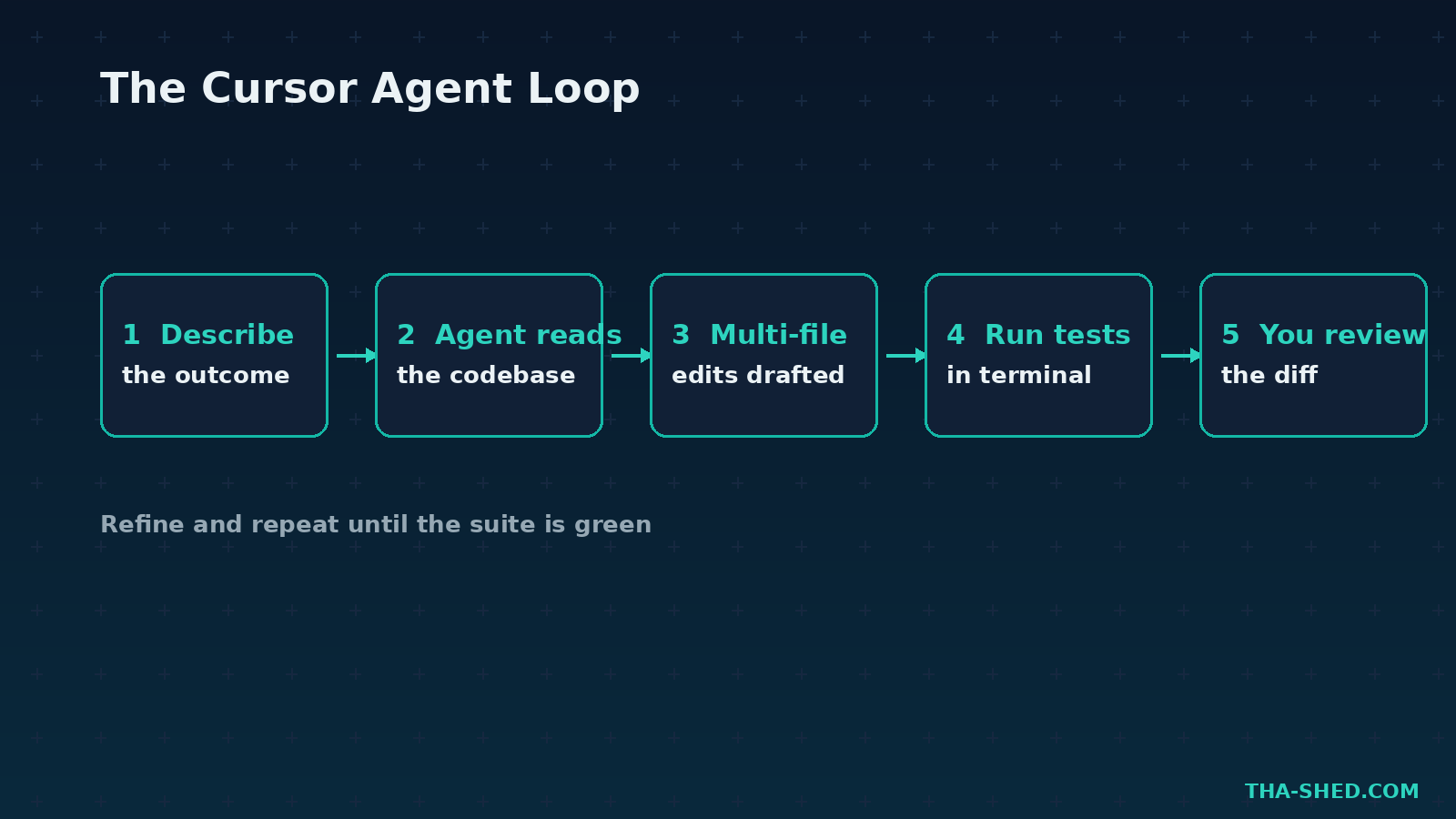
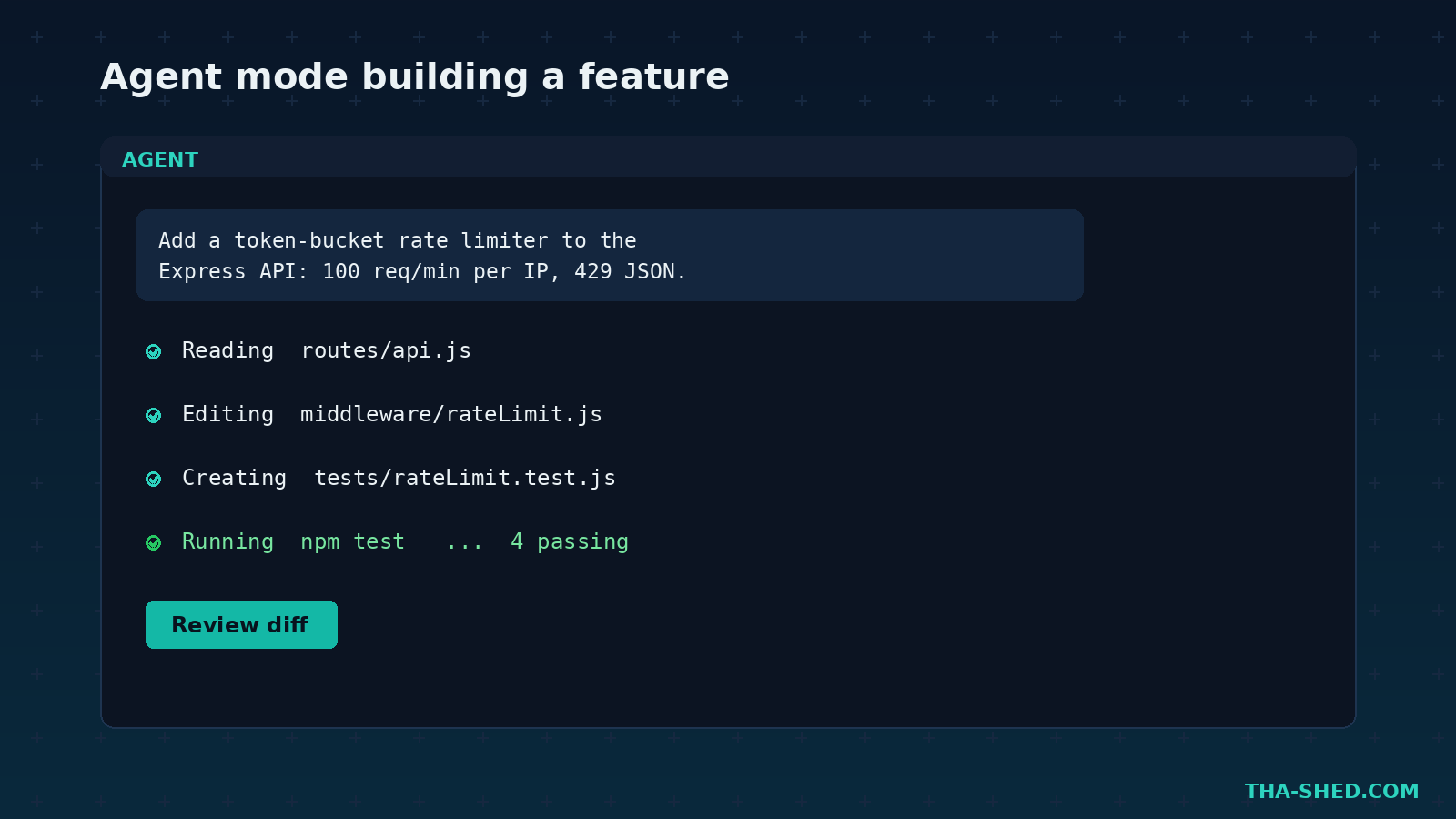
Open the Agent panel, describe the outcome, and let it plan and write across files. Keep the instruction specific. For example:
Add a rate limiter middleware for the Express API. Use a token bucket, 100 requests per minute per IP, return 429 with a JSON error, and add a unit test.
Agent figures out which files to touch, makes the edits, and can run your test command to verify. You review the diff and accept or refine.
2. Surgical edits with Cmd plus K
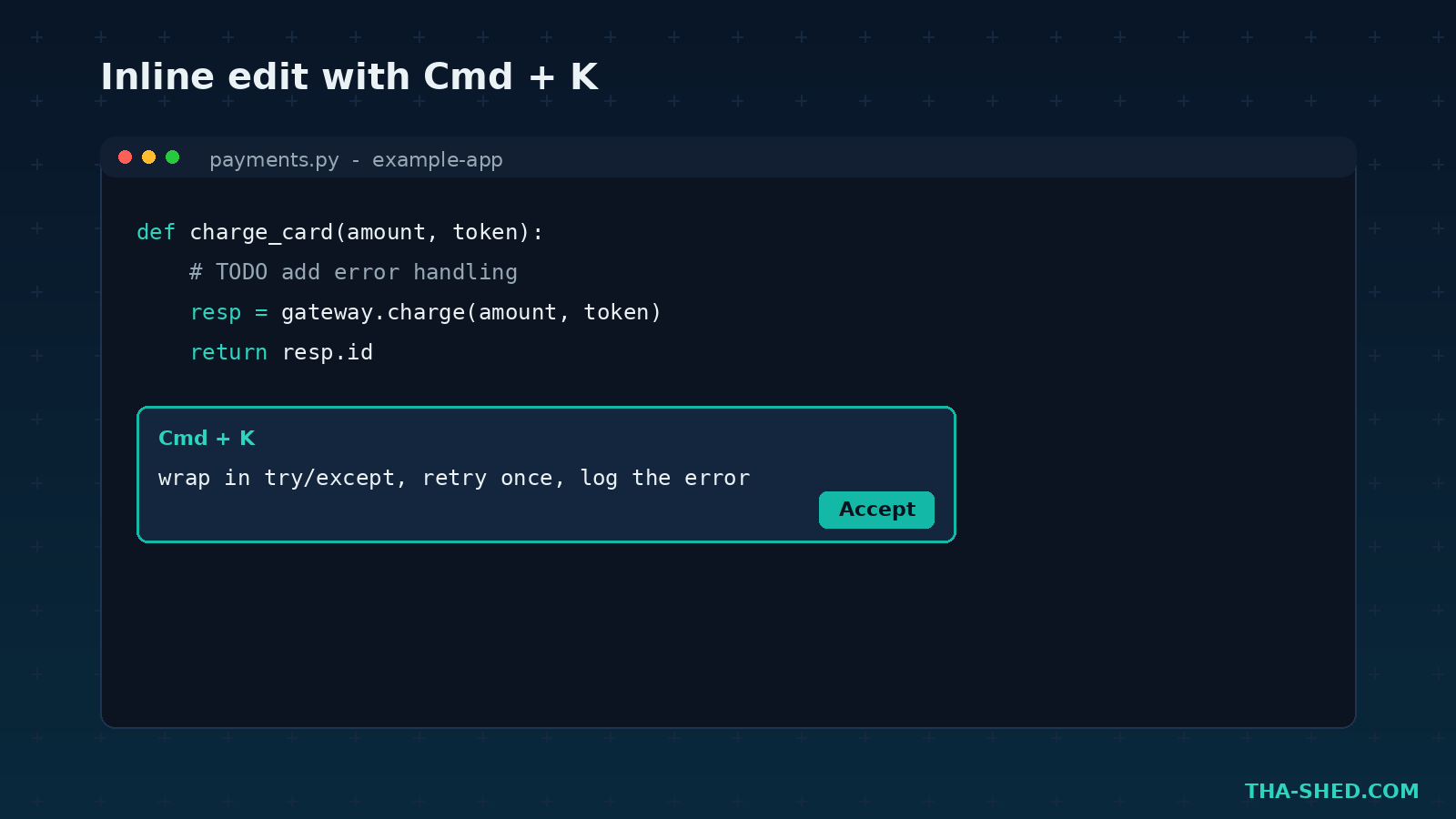
Highlight a function, press Cmd plus K, and type a one line instruction like convert this to async and add error handling. Inline Edit shows a diff and only writes after you accept. This is the workflow you will reach for a hundred times a day, because it is precise and stays out of your way.
3. Let Tab handle the boring parts
Tab completion predicts your next edit, not just the next token. Start typing a loop, a struct, or a config block and press Tab to accept multi line suggestions. It is tuned to suggest less but suggest better, so the completions you see are usually worth keeping. Boilerplate, repetitive refactors, and test fixtures basically write themselves.
4. Ask questions about your own codebase
New to a repo, or staring at code you wrote eight months ago? Ask the chat in plain English: where is auth handled, and which files would I touch to add SSO? Cursor searches the project and answers with file references. This alone cuts onboarding time, which is why it pairs well with our take on AI agents for employee onboarding.
5. Generate and fix tests
Select a module and ask Agent to write tests, then run them. When something fails, paste the error or just say the auth test is failing, find and fix the cause. Agent reads the stack trace, locates the bug, proposes a patch, and re-runs the suite. The loop of write, run, fix is where the autonomous features earn their keep.
6. Set the rules once
Add a rules file to your project so Cursor follows your standards every time. A short rules file might say: use TypeScript strict mode, prefer functional components, never log secrets, and write tests for new endpoints. Now you stop repeating yourself in every prompt, and the AI output matches your team style by default.
7. Extend it with MCP and the CLI
Cursor supports MCP servers, which let the agent reach external tools like your issue tracker, database, or docs. It also ships a CLI so you can run the agent headless, for example inside a CI job to draft a fix for a failing build. For DevOps and security folks, this is the bridge from a nice editor to an automation surface. If you came from GitHub Copilot, the jump in autonomy is real, and our GitHub Copilot tutorial makes a useful comparison point.
Safety and gotchas
Cursor is powerful, which means it can be powerfully wrong. A few guardrails that matter, especially if you handle sensitive code:
- Review every diff. Never accept agent changes you have not read. The model is confident even when it is mistaken.
- Watch the terminal. Agent can run shell commands. Do not let it auto run destructive operations like deleting files or force pushing. Approve commands manually when the stakes are high.
- Mind your secrets. Indexing sends code context to the model. Check your privacy settings, use privacy mode if your work is sensitive, and keep credentials out of files the agent reads.
- Treat untrusted input as suspect. Prompt injection is a real risk when the agent reads external files or MCP responses. Instructions hidden in a pasted log or a third party doc should never be obeyed blindly.
None of this is a reason to avoid the tool. It is a reason to stay the senior engineer in the loop.
Cost tips that keep the bill sane
Cursor uses a credit based model. Each paid plan includes a credit pool roughly equal to its price, and the built in Auto mode is unlimited on paid plans. Credits only deplete when you manually pick a frontier model like a top tier Claude or GPT option. Practical tips:
- Start on Pro at about 20 dollars a month and stay on Auto mode for most work. It is genuinely good.
- Reserve frontier models for hard problems, gnarly refactors, and tricky debugging where the quality jump is worth the credits.
- If you live in Agent mode all day, the heavier tiers exist for that, but most individuals never need them.
- Annual billing trims roughly a fifth off the price if you know you are sticking with it.
Want to turn these habits into a real skill set? Our courses cover the DevOps and AI workflow stack end to end.
FAQ
Is Cursor free?
Yes, there is a free Hobby tier that includes limited Tab completions and agent requests. It is enough to learn the tool. Heavy daily users move to Pro for unlimited Tab and extended agent limits.
How is Cursor different from GitHub Copilot?
Copilot started as an in editor autocomplete and has grown agent features. Cursor was built agent first, with deep codebase awareness, multi file edits, and a strong Agent mode at the center. Many engineers run both and let each do what it does best.
Which model should I use in Cursor?
Stay on Auto mode for everyday coding, since it routes intelligently and does not burn credits. Switch to a named frontier model for complex reasoning, large refactors, or stubborn bugs where you want maximum capability.
The bottom line
Cursor will not replace you, but an engineer who wields it well will out ship one who does not. Install it, import your settings, write a rules file, and run the seven workflows above for a week. Drive with intent, review with discipline, and let the boring code write itself. Ready to level up the rest of your stack? Start with our courses and build the habits that compound.