Claude for Chrome puts Claude directly in your browser as a side panel that can read a page, click buttons, fill forms, and move between tabs the way you would. It is still in beta, but it is already useful for DevOps and security work that lives in dashboards and web consoles rather than a terminal: pulling numbers off an analytics tool, triaging tickets in a browser-based queue, checking a status page every morning without opening it yourself.
This tutorial covers setup, the permission mindset that keeps it safe, and seven workflows worth trying.
What Claude for Chrome actually is
It is an official Anthropic browser extension, not a separate app. Open the side panel and Claude can see the page you are on and act on it: reading text, clicking, typing, navigating, and filling forms. It also has built-in knowledge of how to navigate common platforms like Slack, Google Calendar, Gmail, Google Docs, and GitHub, so a plain instruction like “schedule a meeting” or “update the doc” works without a step by step script. Available on all paid plans, generally available inside Cowork and Claude Code, still in beta as a standalone browser extension.
Quick setup
Claude for Chrome only runs in Google Chrome itself, not other Chromium browsers, and not on mobile.
- Visit the Chrome Web Store listing and click Add to Chrome.
- Sign in with your Claude account when prompted.
- Pin the extension: click the puzzle piece icon in the toolbar, then the thumbtack next to Claude.
- Grant the requested permissions, then click the Claude icon any time to open the side panel.
Read the permission list before you click through it. The debugger permission is what lets Claude actually click and type on your behalf, and tabs lets it open and switch between tabs. Nothing sinister, just worth knowing what you are granting.
The mindset: permissions are the product, not paperwork
With a terminal agent, the blast radius is your codebase. With a browser agent, the blast radius is every site you are logged into: your inbox, your CRM, your bank. That changes how you should treat permissions. Start every new site in “ask before acting” mode, and only flip a site to “act without asking” once you have watched Claude work on it a few times and trust the pattern.
The second half of the mindset: a webpage is not a trusted instruction source. Claude reads whatever text is on a page, and a malicious site can hide text aimed at hijacking the agent, a prompt injection attack. Anthropic has shipped safety classifiers that check actions before they run, but the official guidance is blunt about it: these protections are not foolproof. Treat every new site the way you would treat an email attachment from someone you do not recognize.
7 Claude for Chrome workflows worth trying
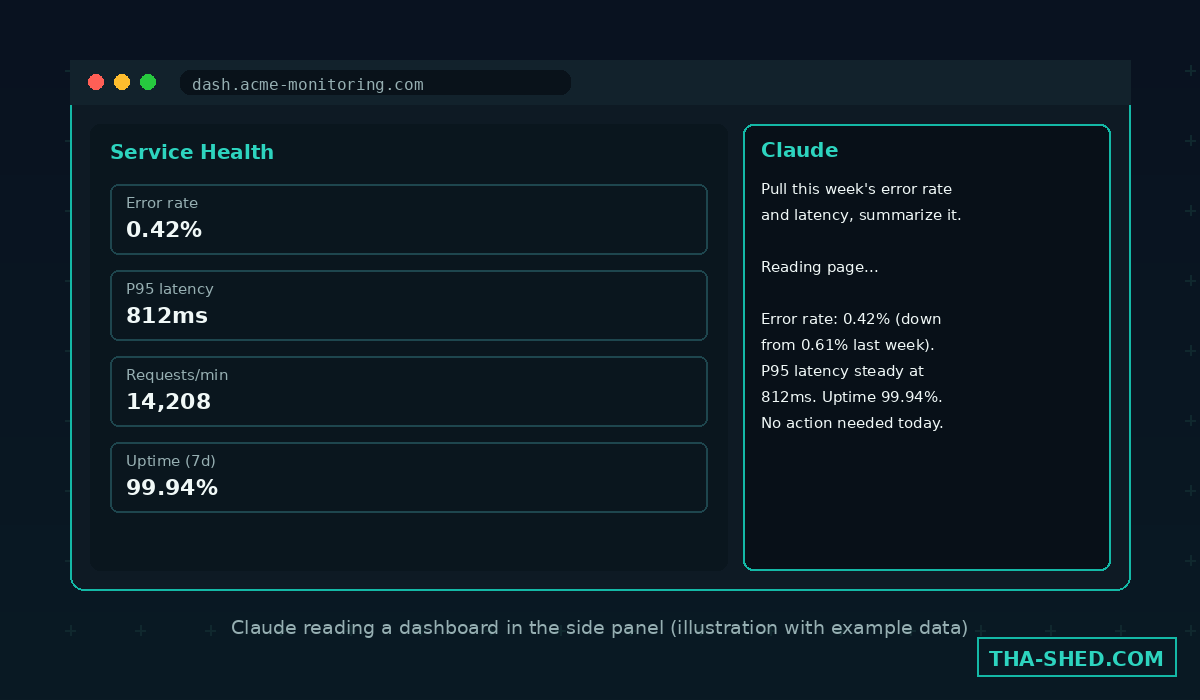
1. Pull metrics from a dashboard with no export button
Open the side panel on your analytics tool and ask: “pull this week’s error rate and latency numbers and summarize them for me.” No CSV export, no copy-paste between fifteen browser tabs, Claude reads the numbers straight off the rendered page.
2. Record a workflow once, replay it forever
Click the record icon in the extension panel, perform a repetitive task yourself once (say, checking a status page and logging the result), stop recording, and save it as a shortcut. Every future run is one click, not a re-typed instruction.
3. Multi-tab triage
Drag several tabs into Claude’s designated tab group and it can read and act across all of them at once, handy for comparing an incident across a monitoring dashboard, a ticket, and a Slack thread without narrating the context switch yourself every time.
4. Scheduled browser checks
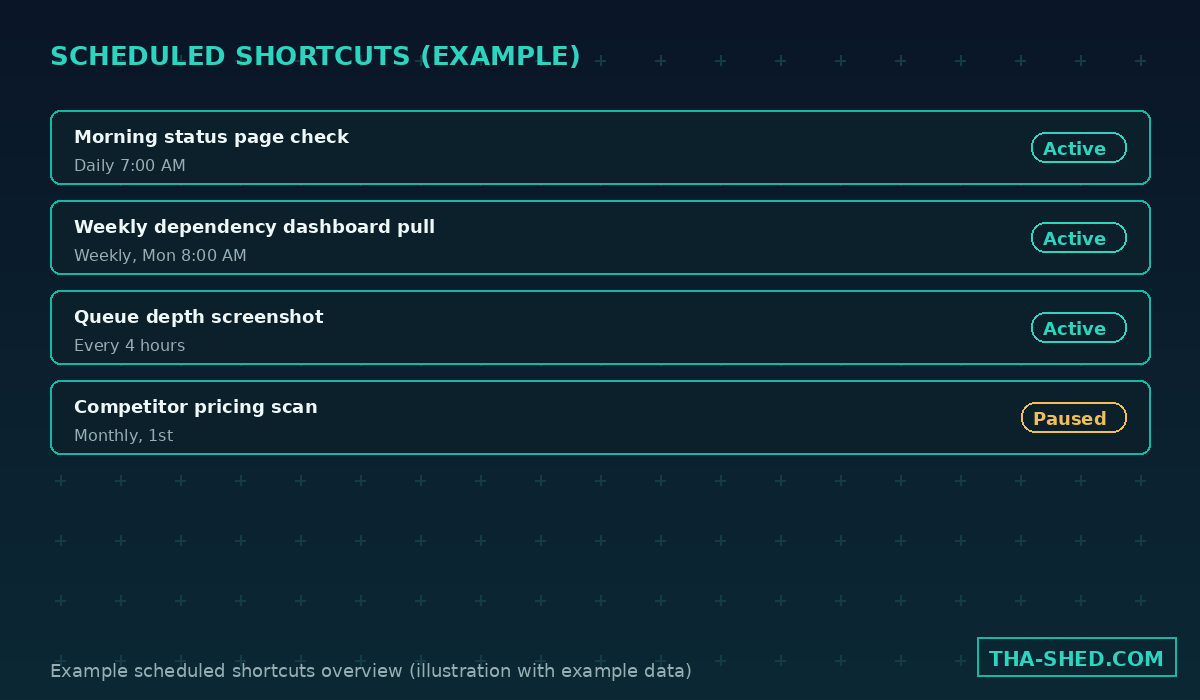
Click the clock icon on a saved shortcut to run it automatically, daily, weekly, monthly, or annually. Point it at a status page, a dependency dashboard, or a queue depth chart and get the check done before you even open your laptop.
5. Build, deploy, verify in one loop with Claude Code
Build a feature with Claude Code in your terminal, deploy it somewhere reachable, then have the Chrome extension click through the actual UI and read the console, network requests, and DOM state to confirm it behaves. Genuinely useful for catching the gap between “the code compiles” and “the page actually works.”
6. Ticket and CRM logging from a live page
Point Claude at a page showing a call or meeting, and it can match attendees to CRM contacts and draft the activity log entry, you review and approve before anything gets created. Same pattern works for logging incident timelines from a monitoring tool into a ticketing system.
7. Shortcuts for your best prompts
Once a prompt reliably does what you want, save it as a shortcut. Type / in the chat to pull up your saved shortcuts instead of re-explaining the task from scratch every time.
Safety and gotchas
Claude for Chrome blocks a set of site categories by default, financial services, banking, investment platforms, cryptocurrency exchanges, adult content, and pirated content, and it will not make purchases, create accounts, bypass bot detection, execute trades, or permanently delete files, regardless of what mode you are in.
A known issue: the per-site permission system can be bypassed by writing directly to the extension’s local storage on disk, which pre-approves domains without you ever clicking anything. Keep the extension updated and do not treat “always allow” as a permanent, unauditable setting.
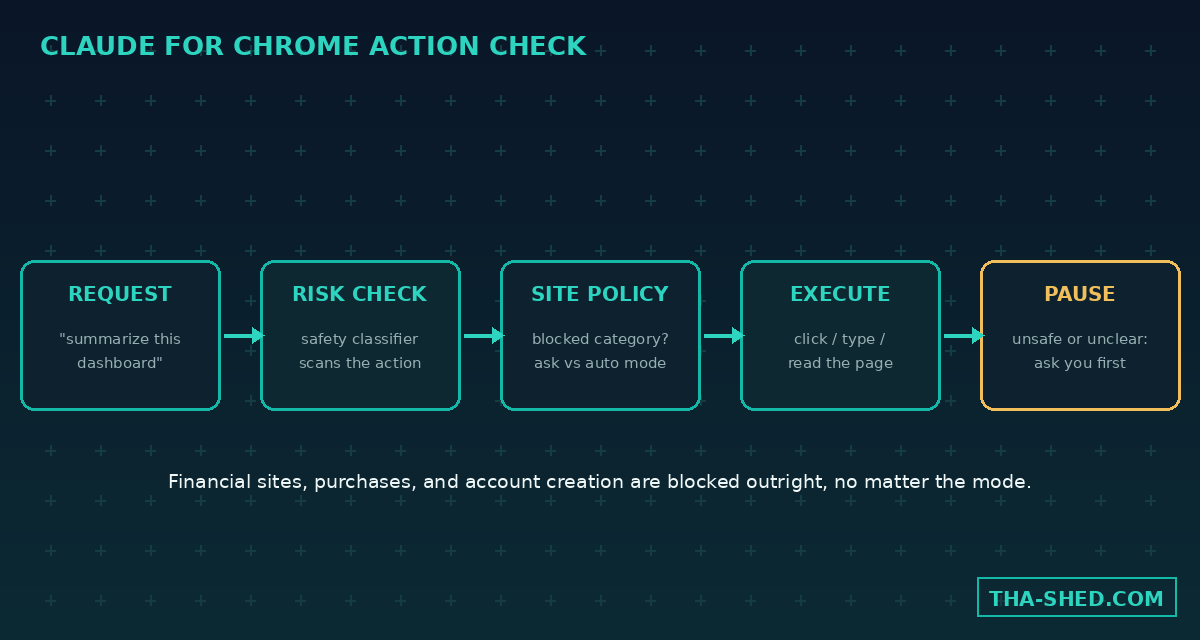
Avoid it entirely for financial transactions, password management, or anything touching sensitive personal data. Team and Enterprise admins can lock this down further with site allowlists and blocklists, worth setting up before rolling this out past your own laptop.
Usage and cost tips
There is no separate charge. Claude for Chrome is included on Pro, Max, Team, and Enterprise plans and draws from the same usage pool as the rest of your Claude activity, so a heavy afternoon of browser automation counts against the same budget as your chats and Claude Code sessions.
Because it is still beta, expect rough edges: a site changes its layout and a saved shortcut can break, so periodically re-check anything you have scheduled to run unattended rather than assuming it will quietly keep working forever.
FAQ
Is Claude for Chrome free to use?
No separate fee. It is included in Pro, Max, Team, and Enterprise Claude plans, currently as a beta feature.
Is it safe to point at any website?
No. Start with familiar, trusted sites in ask-before-acting mode. A set of high-risk categories are blocked by default, and prompt injection from malicious pages remains a real, only partly mitigated risk.
Does it replace Claude Code for developers?
No, it complements it. Build and edit code with Claude Code in your terminal, then use the Chrome extension to click through the live result, read console errors, and verify the UI actually works.
Get building
Install the extension, pick one repetitive browser chore you do every week, and record it as a shortcut before you touch anything scheduled or unattended. For more on pairing agentic tools with your existing DevOps stack, see our Claude MCP Connectors tutorial, and for structured practice check our DevOps and cybersecurity courses.