Most people still use Claude like a search box with better manners. Ask a question, get an answer, copy and paste it somewhere else, repeat. That is fine for chat. It is a waste of what Cowork can actually do.
Claude Cowork is the agentic mode built into the Claude desktop app (also rolling out to web and mobile) that hands Claude real, multi-step work instead of one-off questions. You describe an outcome, Claude plans it, runs it, and comes back with a finished file, an organized folder, or a completed task. No terminal, no code required. If you have used Claude Code, this is that same engine pointed at your actual job instead of a repo.
Here is how to set it up and get real productivity out of it, with seven workflows worth stealing today.
What Claude Cowork Actually Is
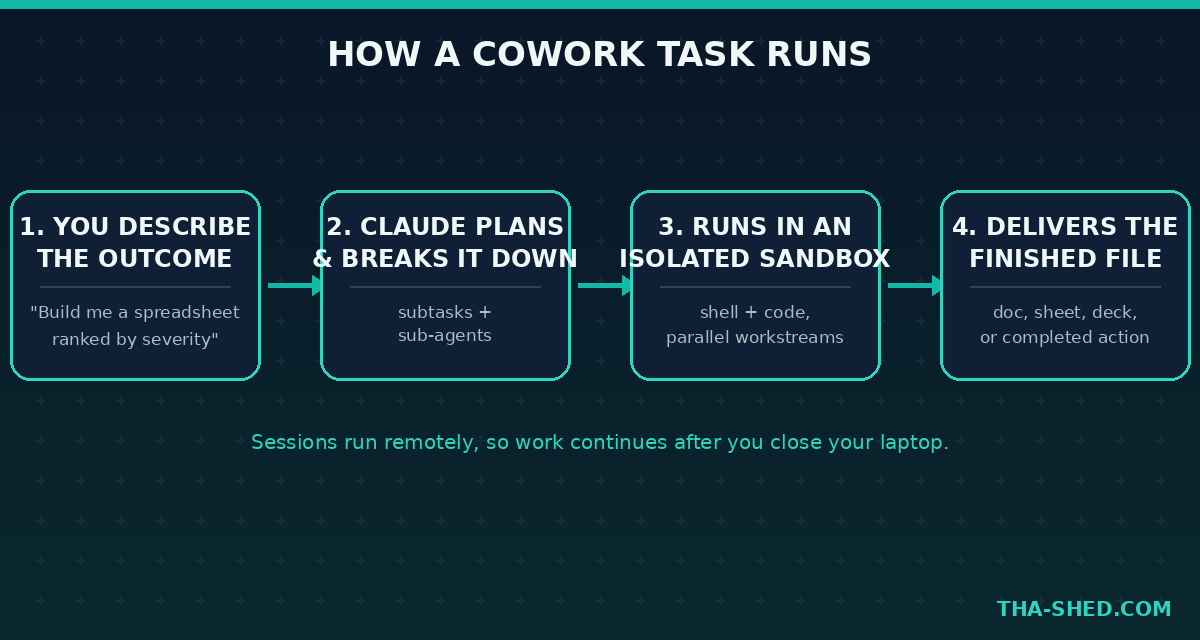
Cowork uses the same agentic architecture as Claude Code, minus the command line. Claude analyzes your request, breaks it into subtasks, runs code and shell commands in an isolated sandbox on Anthropic’s servers, and coordinates parallel workstreams when the job calls for it. Sessions run remotely, so work keeps going even after you close your laptop, and you can check progress from your phone later.
The practical difference from regular chat: Cowork can read and write files in folders you connect, generate real Excel files with working formulas instead of broken CSVs, produce PowerPoint decks, and take actions through connected tools like Gmail, Slack, or your project tracker, all inside one session.
Quick Setup
Getting running takes about five minutes.
- Update or install Claude Desktop. Cowork needs the latest Claude Desktop app on macOS or Windows for local file access, browser control, and computer use. Grab it from claude.com/download.
- Open the message box and pick “Cowork” instead of “Chat.” Chat and Cowork now share one home, so you are one click away at all times.
- Connect a folder. Point Claude at the folder you want it to work in. It will only read and write inside folders you have granted.
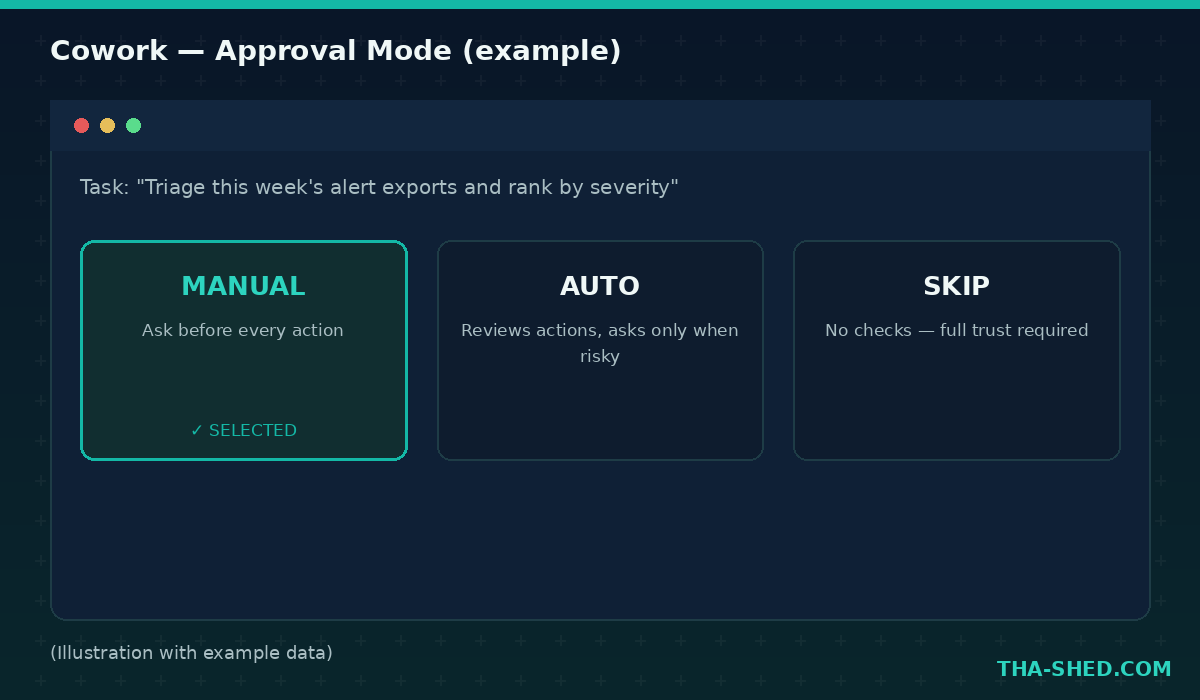
- Pick your approval mode. Manual asks before every action, Auto reviews actions for safety and only interrupts you for higher-risk moves, Skip does not check anything. Start on Manual until you trust the workflow.
- Set global instructions. In Settings, add standing context, like your role, preferred tone, or output format, so you are not repeating yourself in every task.
That’s it. No API keys, no config files.
The Mindset: Hand Off Outcomes, Not Steps
The single biggest productivity mistake people make with Cowork is treating it like autocomplete. Typing “write me a bash command to check disk usage” is chat behavior. Cowork rewards a different instinct: describe the finished thing you want, and let Claude figure out the steps.
Instead of “help me summarize these ten incident reports,” try “read every file in the incidents folder, pull out root cause and MTTR for each, and build me a spreadsheet I can sort by severity.” Instead of “what should my onboarding checklist look like,” try “build a 30/60/90 day onboarding doc for a new SOC analyst and save it as a Word file.” The gap between those two framings is the gap between a chatbot and an employee.
This matters for DevOps and security work specifically, since so much of the job is repetitive multi-step triage: gather logs, cross-reference, summarize, escalate. That is exactly the shape of task Cowork is built for.
7 Workflows That Actually Save You Time
1. Log and alert triage
Drop a folder of exported logs or alert exports and ask Claude to do the first pass.
“Read the CSV exports in /alerts, group by service and severity, flag anything that looks like a repeat offender in the last 7 days, and give me a prioritized list with recommended next step for each.”
2. Config and IaC review
Point Cowork at a folder of Terraform, Ansible, or Kubernetes manifests before you open a PR.
“Review every .tf file in this folder for hardcoded secrets, overly permissive IAM policies, and missing tags. Output a markdown report grouped by file with severity ratings.”
3. Incident postmortems from raw notes
Feed it your Slack export or rough timeline notes from an incident channel.
“Turn these incident notes into a blameless postmortem doc: timeline, root cause, impact, and action items with owners. Save as a Word document.”
4. Vulnerability report cleanup
Scanner output is almost always noisy. Let Claude do the deduplication and prioritization work.
“Read the scan results in this folder, dedupe findings across the three tools, cross-reference against our asset inventory, and build a spreadsheet ranked by exploitability and asset criticality.”
5. Scheduled compliance and audit prep
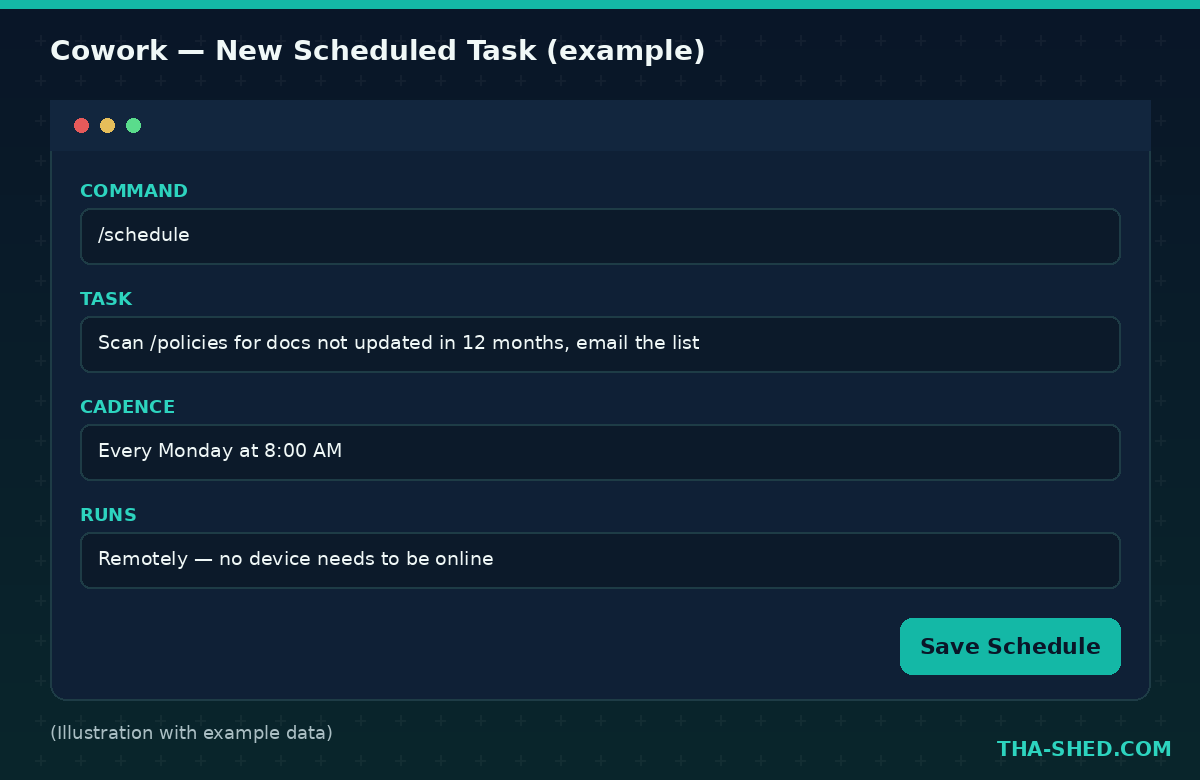
Type /schedule in any Cowork task to set up something recurring.
“Every Monday at 8am, scan the /policies folder for documents that haven’t been updated in 12 months and email me the list.”
Scheduled tasks run remotely, so your laptop does not need to stay open.
6. Documentation from scattered sources
Runbooks live in people’s heads more often than they should. Cowork is good at pulling them out.
“Read these five Slack threads and two Google Docs about our deploy process, and turn them into a single runbook with clear numbered steps and a rollback section.”
7. Cross-tool status rollups
With connectors turned on, Cowork can pull from your actual tools instead of you copy-pasting between tabs.
“Pull open incidents from PagerDuty, open PRs from GitHub that are older than 3 days, and this week’s on-call schedule, and put it in one status doc for the team standup.”
Safety and Gotchas
Cowork can take real actions on your behalf, so a few things are worth knowing before you hand it the keys.
Approval mode matters more than people think. Auto mode reviews actions for things like data exfiltration or prompt injection before running them, but Anthropic is upfront that no defense is perfect. For anything touching money, messages sent as you, or files you cannot easily recover, stay on Manual or watch closely.
Deletion has a built in guardrail. Claude requires explicit permission before permanently deleting files, and you’ll see a separate prompt for it even in Auto mode.
Network egress follows your existing settings, with one exception: those permissions do not apply to web fetch, web search, or MCP connectors including Claude in Chrome. If your org restricts internet access, check those settings separately.
Memory does not carry over from chat yet. What Claude knows about you in regular conversation is not automatically available in Cowork, memory only persists inside Cowork projects. If continuity matters, use projects rather than one-off tasks.
Cowork activity is not currently captured in the Compliance API. Team and Enterprise admins can use OpenTelemetry to monitor activity instead.
Usage and Cost Tips
Cowork is available on Pro, Max, Team, and Enterprise plans, with Pro starting around 20 dollars a month. Multi-step agentic work burns through more usage than plain chat, since every subtask and tool call costs tokens, and Auto mode specifically consumes more than Manual or Skip because Claude runs extra safety checks on every action.
A few ways to stretch your usage: batch related work into a single session instead of spinning up five small ones, drop back to regular Chat for anything that does not need file access, and check Settings then Usage if you are hitting limits often. If you run the same task weekly, a scheduled task usually beats re-explaining it from scratch each time.
FAQ
Does Cowork require Claude Code or coding knowledge?
No. Cowork uses the same underlying agent architecture as Claude Code, but there is no terminal and no code required. It is built for knowledge work: documents, spreadsheets, research, and file organization.
Can Cowork work while my computer is off?
Sessions run remotely on Anthropic’s servers, so work continues if you close your laptop. The one exception is tasks that need something local, like a file on your machine or your browser, which route through the Claude Desktop app when it is open.
What’s the difference between Cowork plugins and Claude Skills?
A skill is a single instruction file that teaches Claude how to do one thing. A plugin bundles multiple skills together with connectors, slash commands, and sub-agents into one installable package built for a specific role, like sales or finance. Anthropic open sourced 11 official plugins covering things like productivity, data, and enterprise search.
Try It This Week
Pick one recurring task you dread, the weekly status rollup, the postmortem writeup, the vulnerability report cleanup, and hand the whole outcome to Cowork instead of doing it by hand. Start on Manual mode so you can see exactly what it does, then loosen up once you trust it. If you want to go deeper on the connector side of this, we covered Claude MCP connectors and Claude Skills in earlier tutorials, both of which plug directly into what Cowork can do. And if you’re building out a career in DevOps or security and want structured, hands-on training instead of piecing it together from blog posts, check out our courses.